Sub-collection Organization
User roles
Protocol steward, curator
Collections can be extended by including sub-collections. These can provide more internal structure or organization and may reflect existing physical arrangement (eg: boxes, folders, subfolders), topical groupings, or any other arrangement that will help users navigate the collection. Sub-collections can be multiple levels deep.
Sub-collections include all the same fields as a regular collection, and can have different cultural protocols than their parent collection.
There are two ways to create a sub-collection:
- By creating a new sub-collection from the top level collection page after the top level collection is saved.
- By assigning an existing collection as a sub-collection within the top level collection. This is useful if you already have existing collections and later want to rearrange them, or you accidentally created a collection that should have been a sub-collection.
New sub-collection
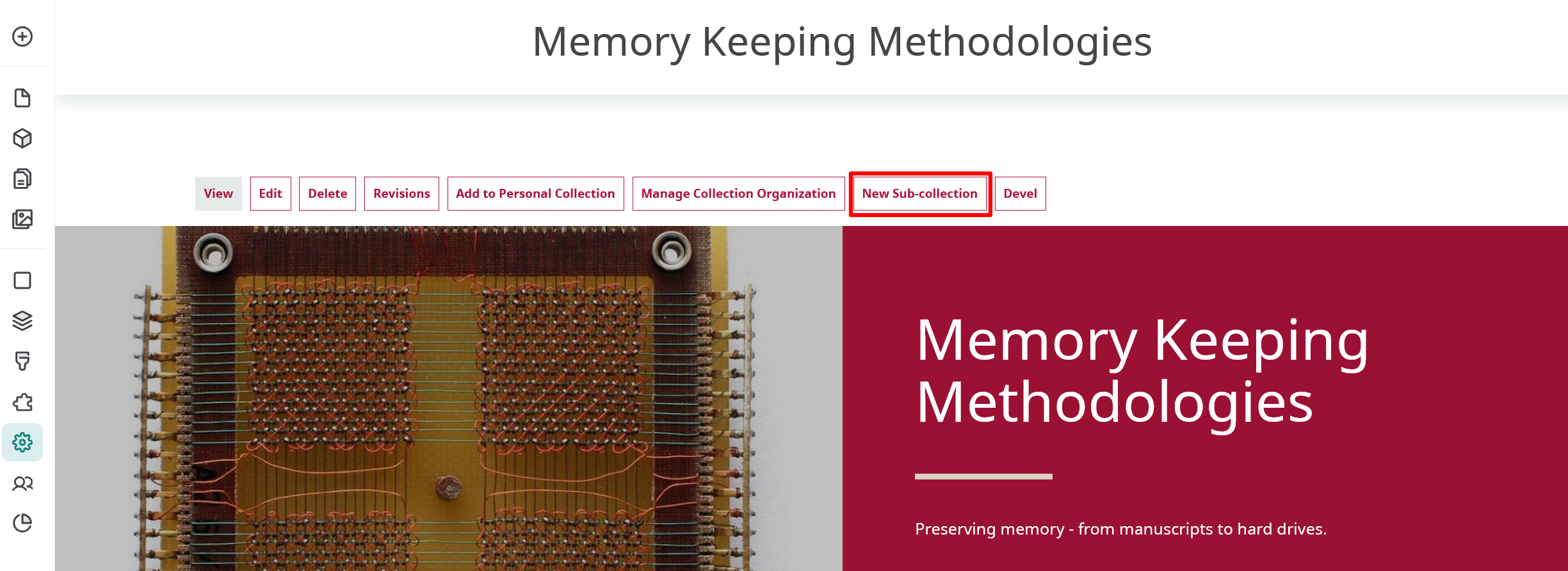
You can create a new sub-collection from a top level collection page.
-
Select the "New Sub-collection" button at the top of the top level collection page.
-
Create your sub-collection by going through the same processes you used to create your top level collection. Those instructions are found in the Create a Collection article.
Assign existing sub-collection
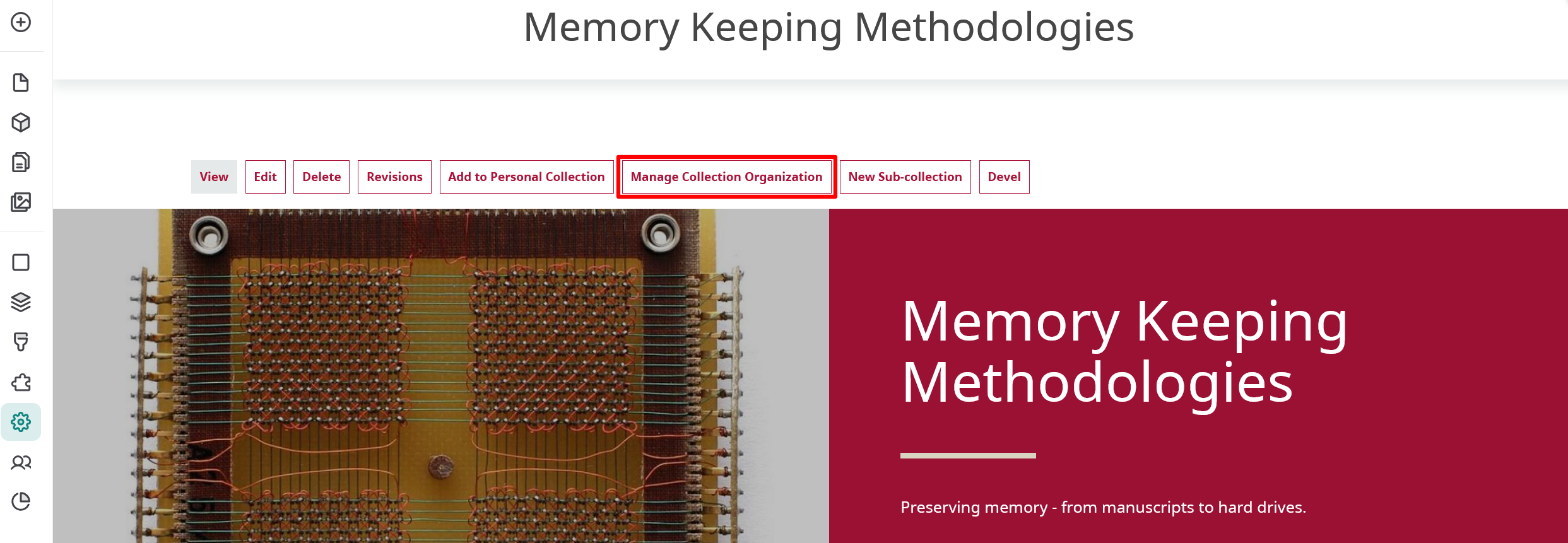
There are two different ways to assign an existing collection as a sub-collection. These are completed from the top level collection page. You can assign a sub-collection by editing the top level collection or by selecting the "Manage Collection Organization" button.
From "Edit"
-
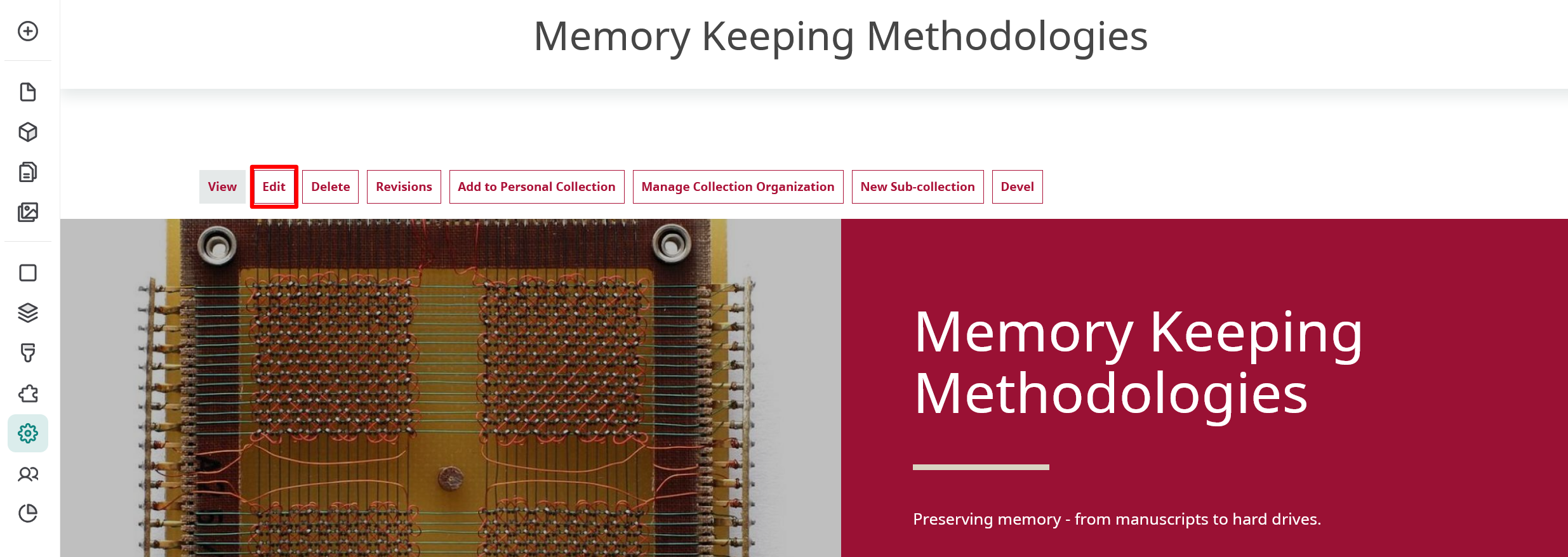
From the top level collection page, select "Edit".
-
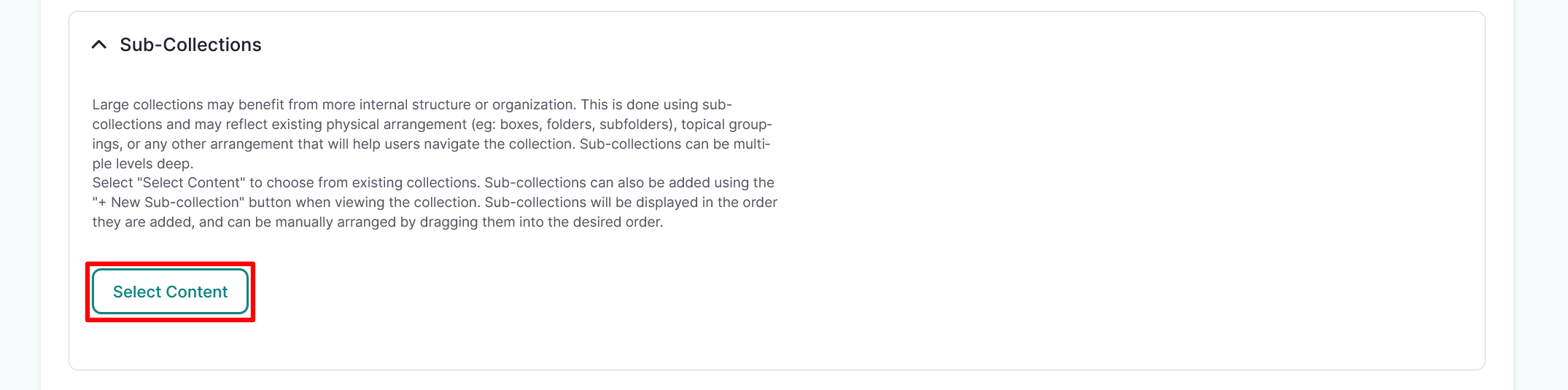
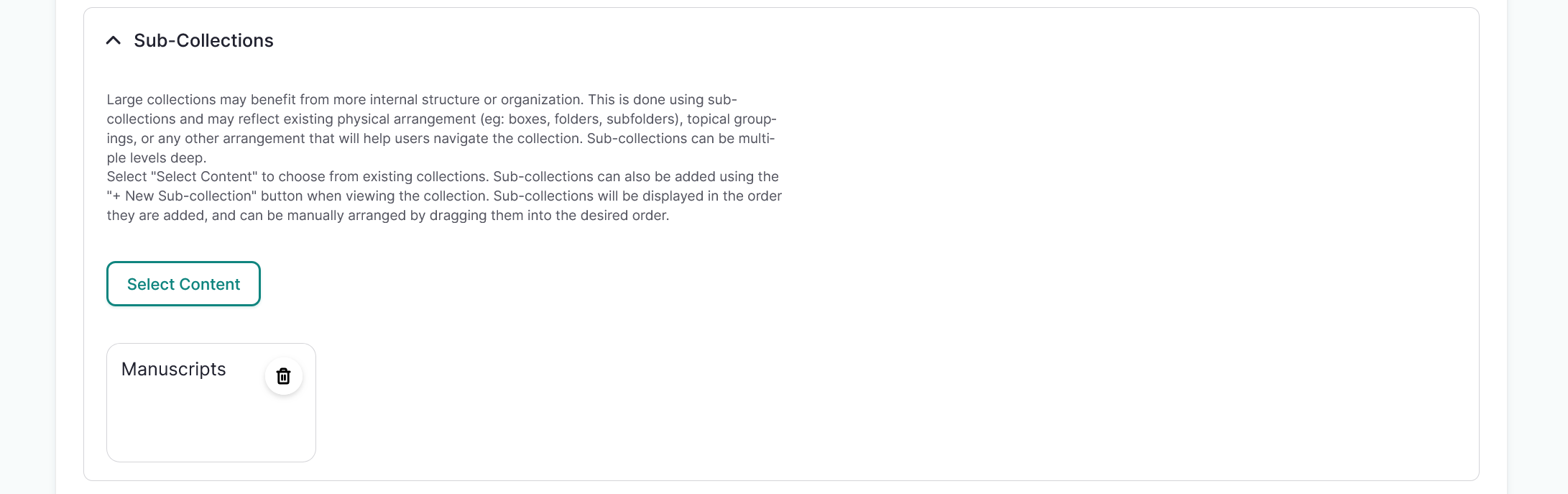
Scroll to the Sub-collections field, then select the "Select Content" button.
-
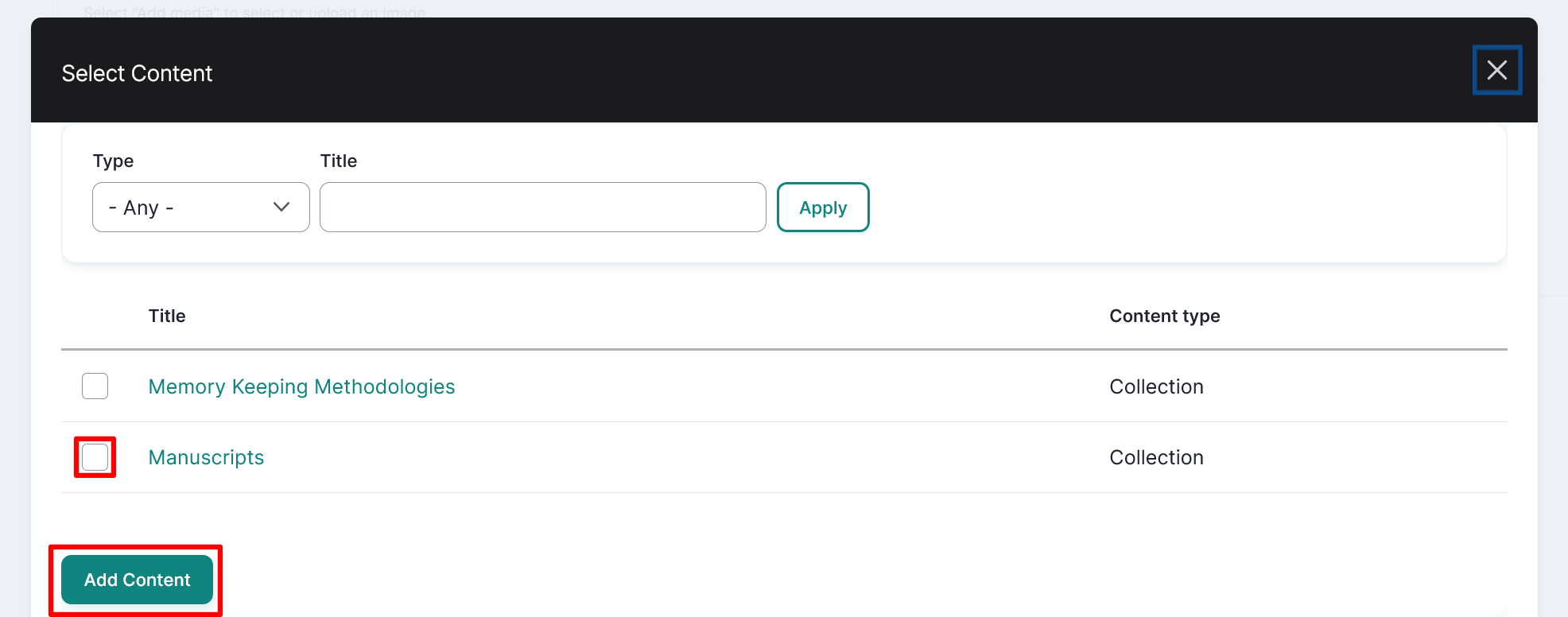
Select any collections you want to assign as a sub-collection by selecting the checkbox beside the collection, then select "Add Content".
-
Check to make sure your sub-collection was properly assigned. Then select the "Save" button at the top of the page to save your sub-collection.
Tip
Select the "Remove" button if you need to remove a sub-collection.
From "Manage Collection Organization"
-
From the top level collection page, select "Manage Collection Organization".
-
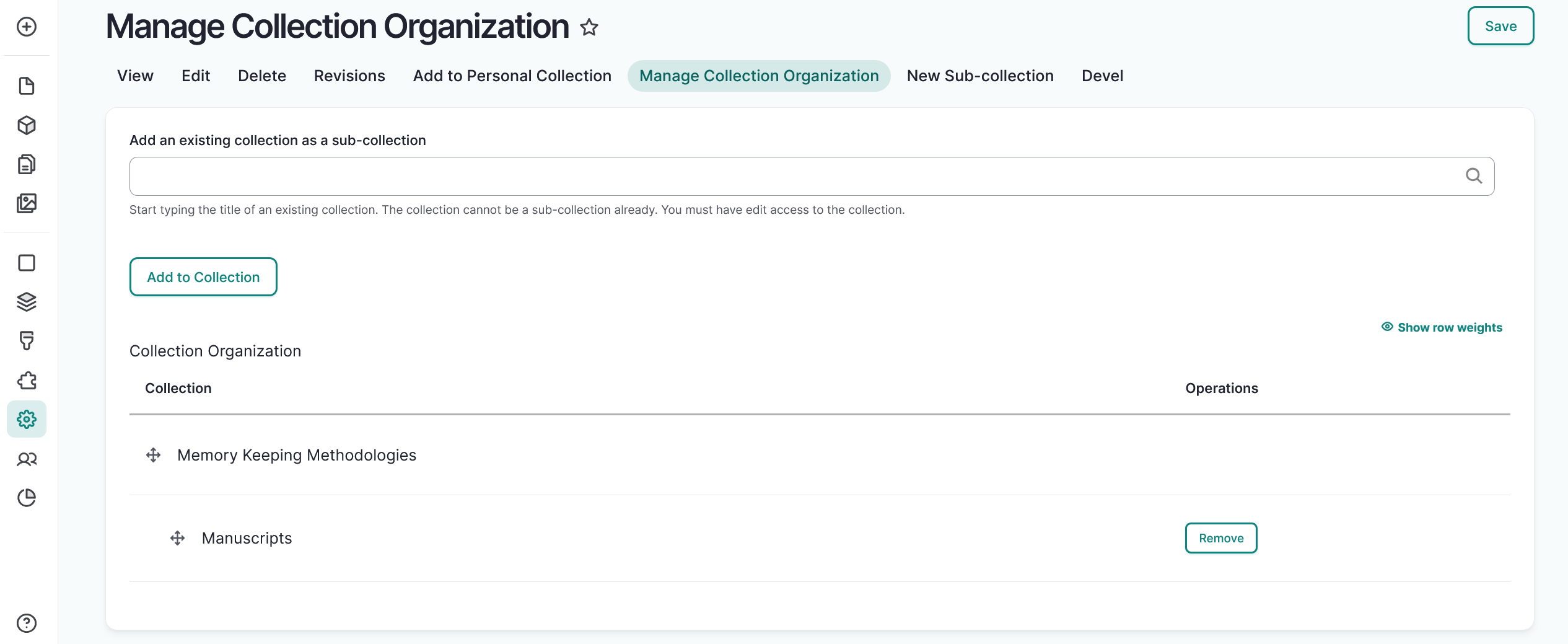
Start typing the sub-collection name in the text box to bring up a list of your existing sub-collections. Select the sub-collection you want to assign, then select "Add to Organization".
-
Your new sub-collection will populate under Collection. You must click and drag it under the top-level collection to assign it as a subcollection.
Warning
You must select and drag the sub-collection under the parent collection before saving for it to be assigned as a sub-collection.
-
Select "Save" to save your collection organization.
Tip
This is also how you create sub-collections for personal collections.