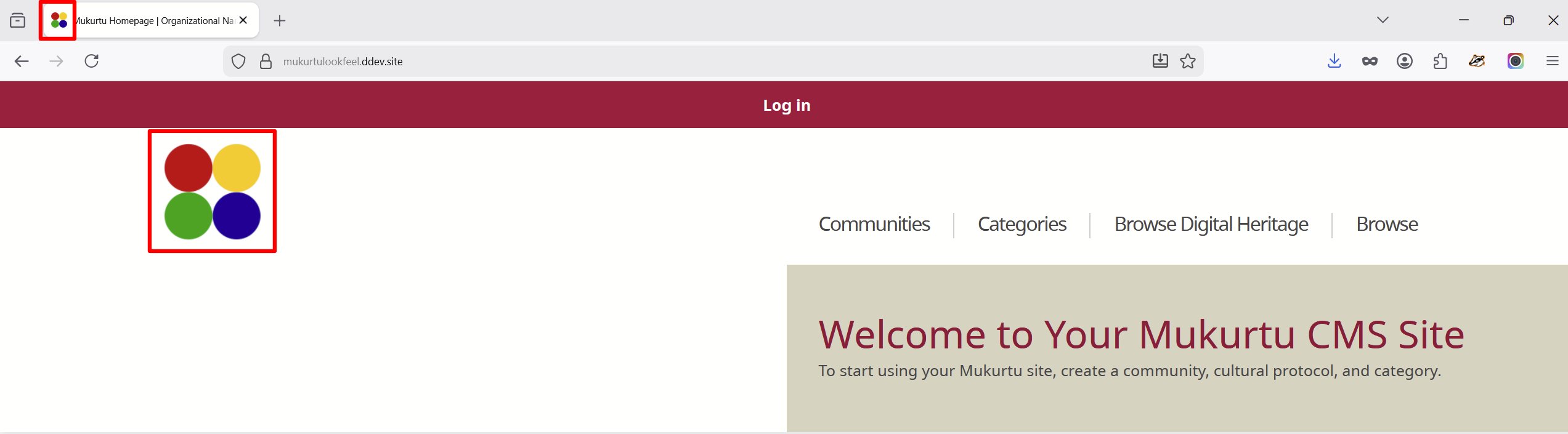
Configure Logos
User roles
Drupal administrator, Mukurtu manager
Configure your logo
-
From your Dashboard, navigate to the Look and Feel section. Select the Change logo link, or go directly to
/admin/appearance/settings.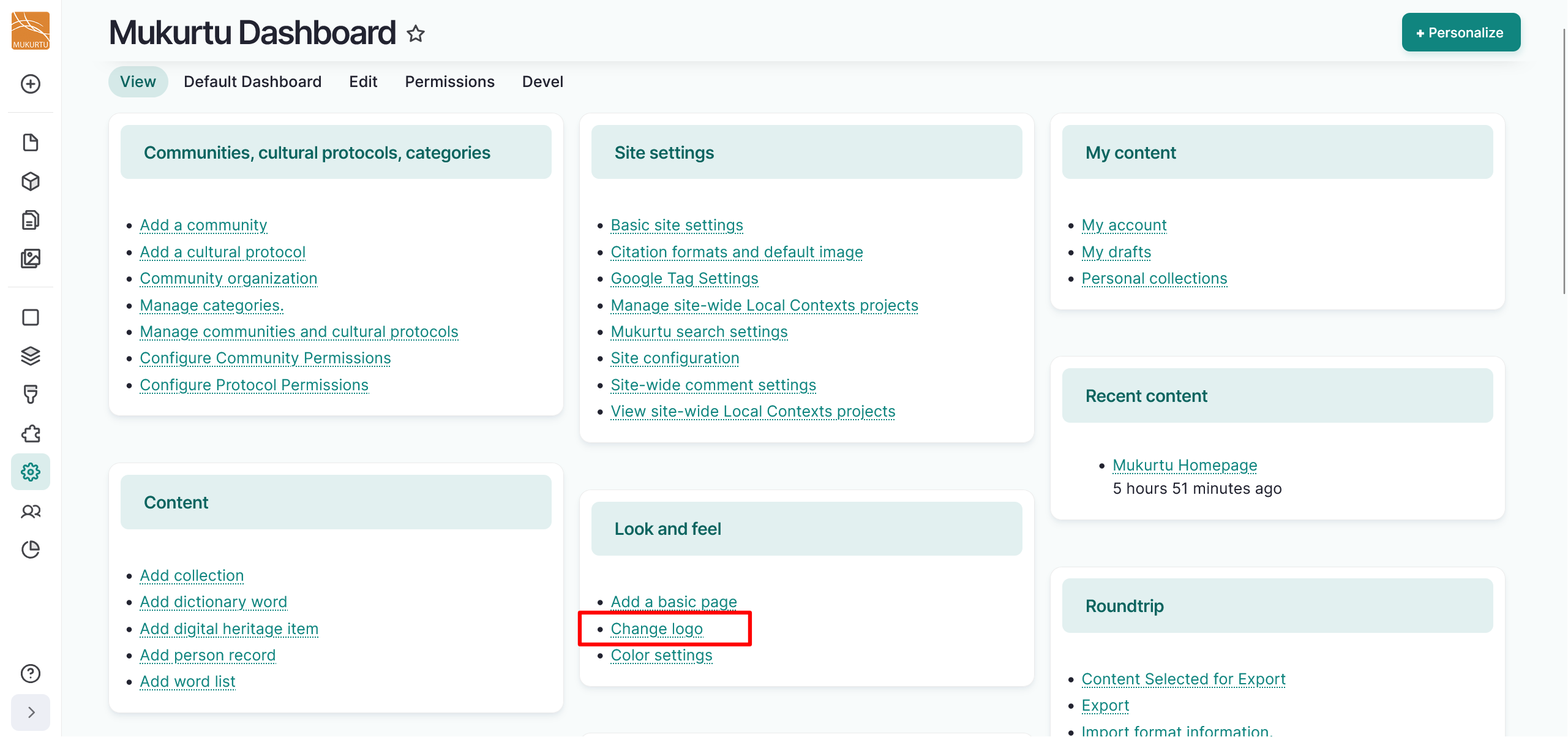
-
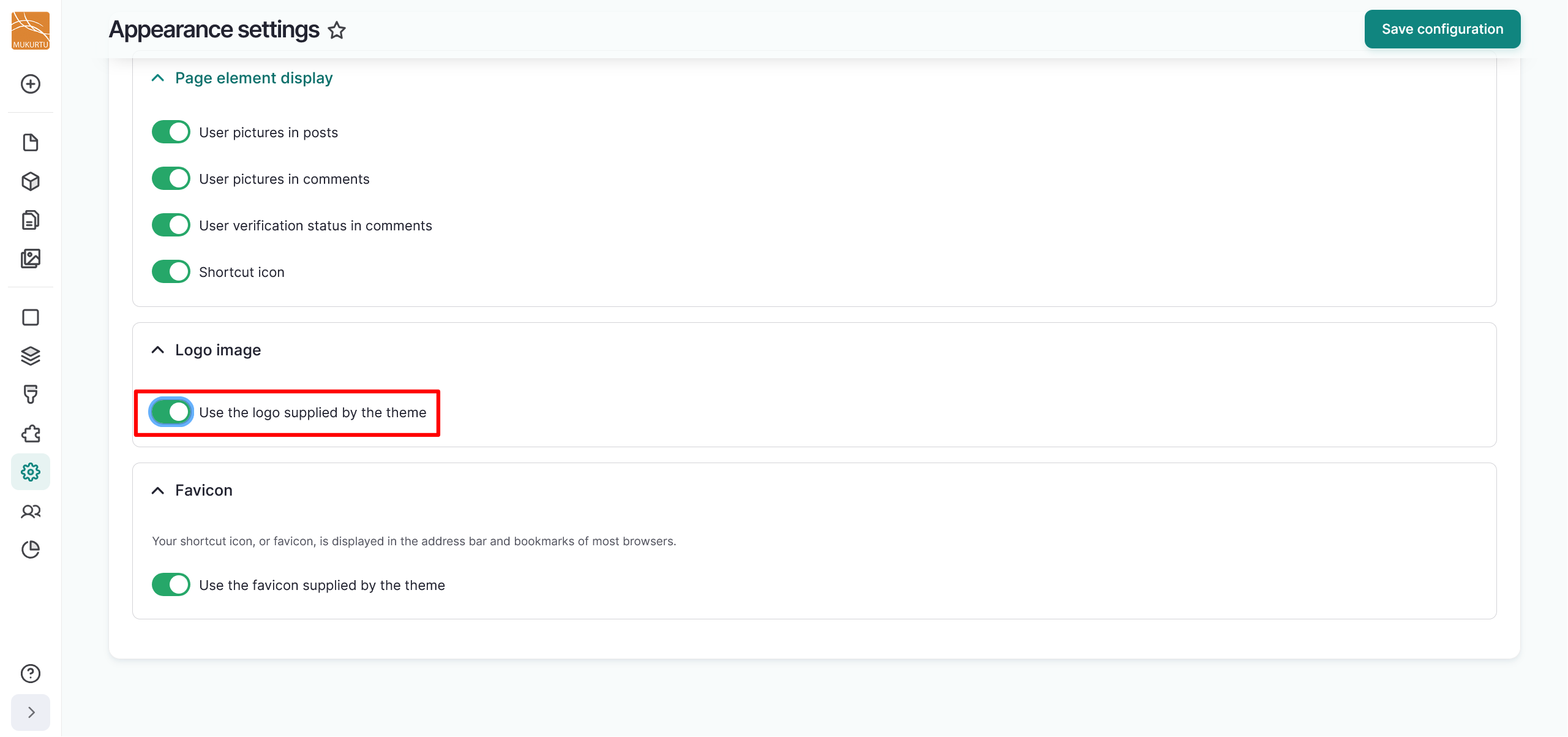
Navigate to the Logo image section and toggle the slider to the left of the Use the logo supplied by the theme field off.
-
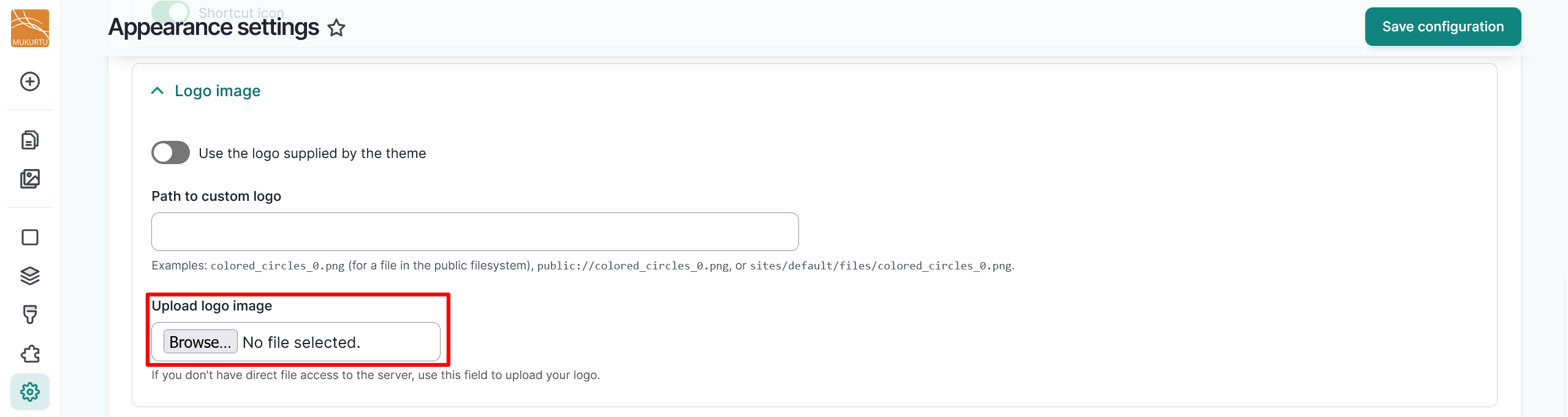
You can upload your custom logo image by selecting the "Browse" or "Choose File" button. The text of the button depends on your browser settings.
-
You can select the "Save configuration" button to save your logo at this point, or you can continue for instructions on how to customize your favicon.
Configure your favicon
Your shortcut icon, or favicon, is displayed in the address bar and bookmarks of most browsers.
-
From your Dashboard, navigate to the Look and Feel section. Select the Change logo link, or go directly to
/admin/appearance/settings. -
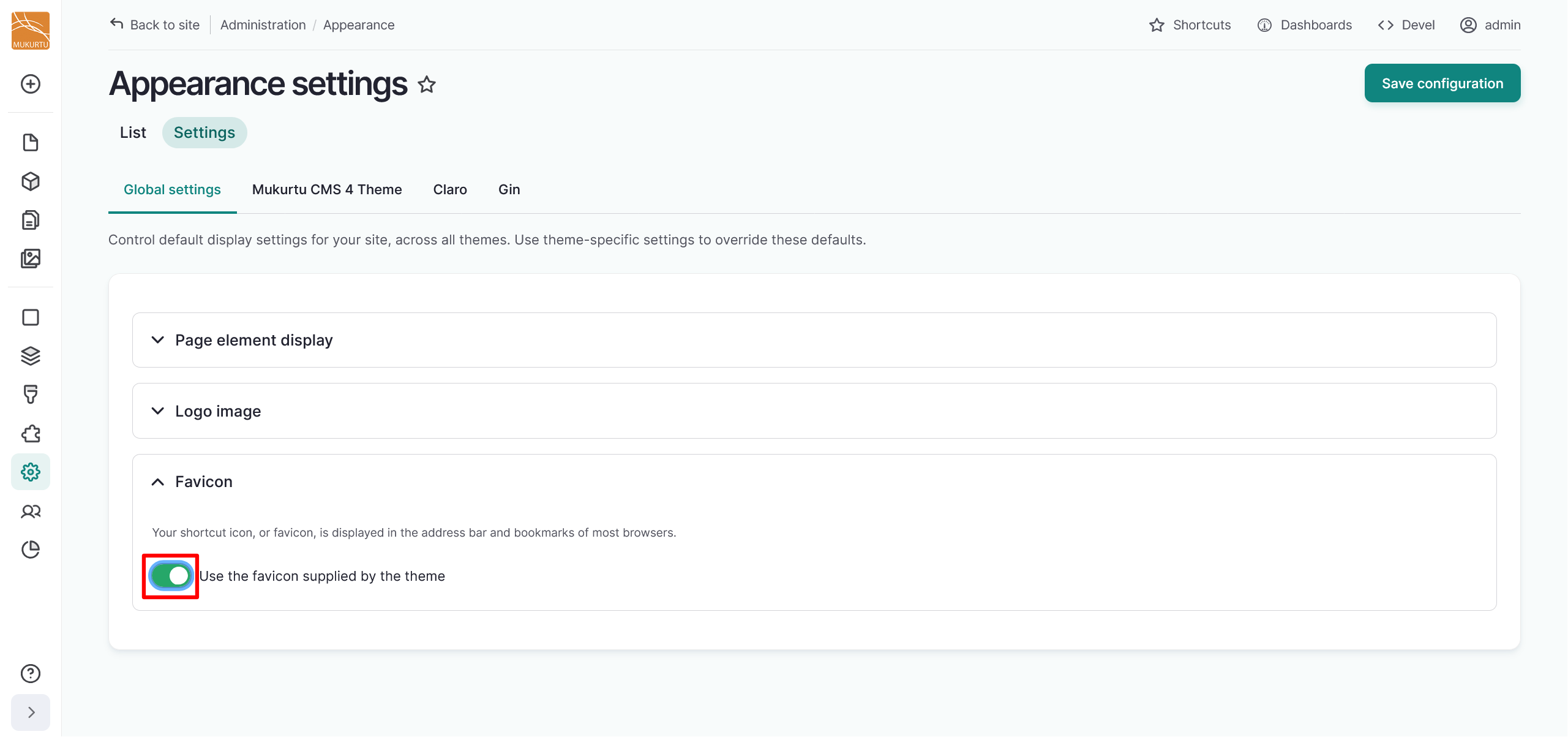
Navigate to the Favicon section and toggle the slider to the left of the Use the favicon supplied by the theme field off.
-
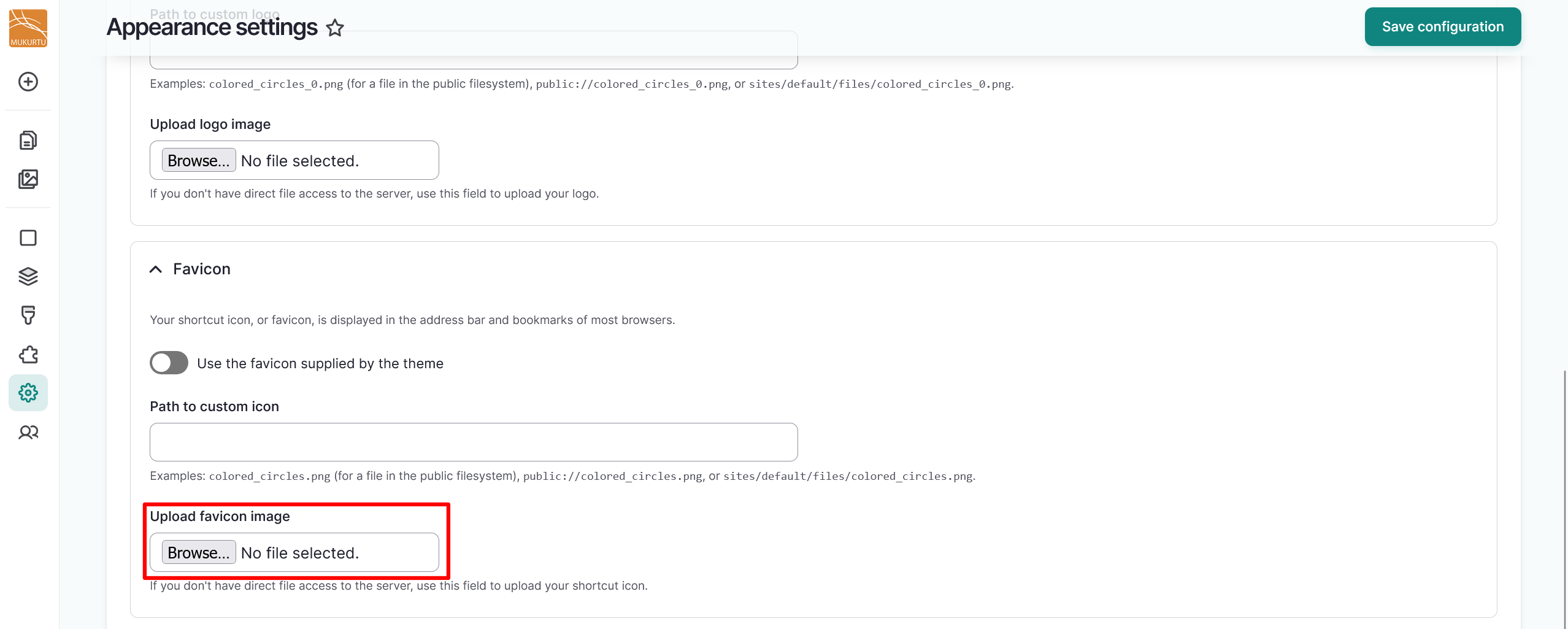
You can upload your favicon image by selecting the "Browse" or "Choose File" button. The text of the button depends on your browser settings.
-
Select the "Save configuration" button to save your favicon.