Configure Color Settings
User roles
Drupal administrator, Mukurtu manager
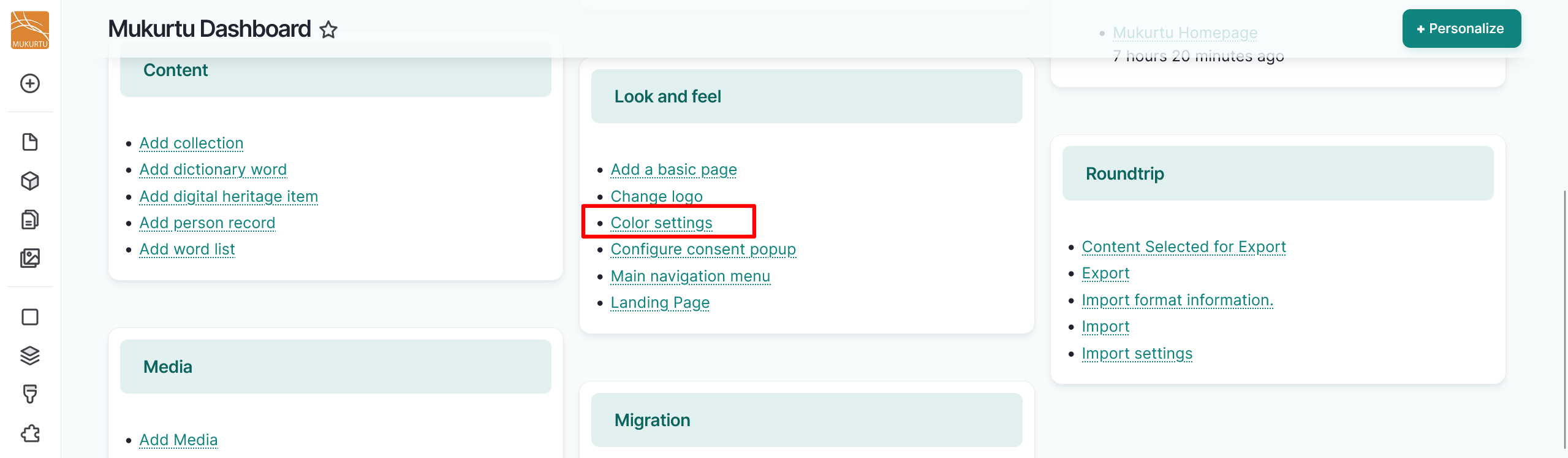
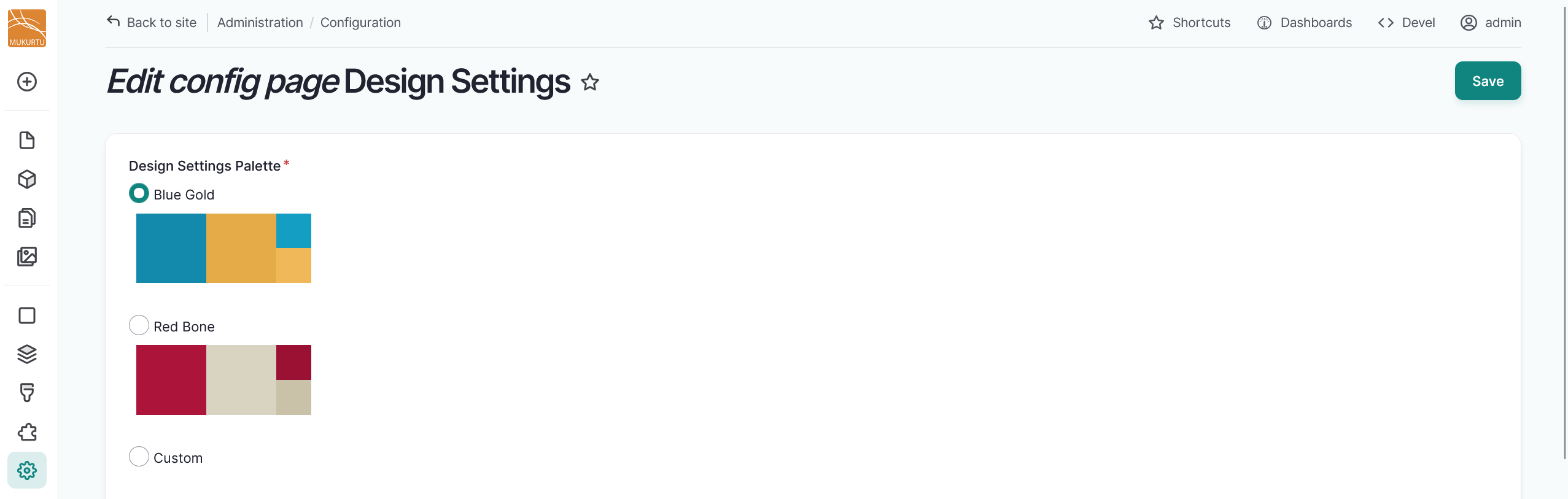
Mukurtu includes two stock color palettes: Blue and Gold and Red and Bone. There is also an experimental palette customizer that allows you to configure custom colors. You can configure your color palette settings in the Dashboard by navigating to Look and Feel and selecting the Color settings link.
Select preconfigured colors
-
Select the radio button to the left of the Blue Gold or Red Bone palette.
-
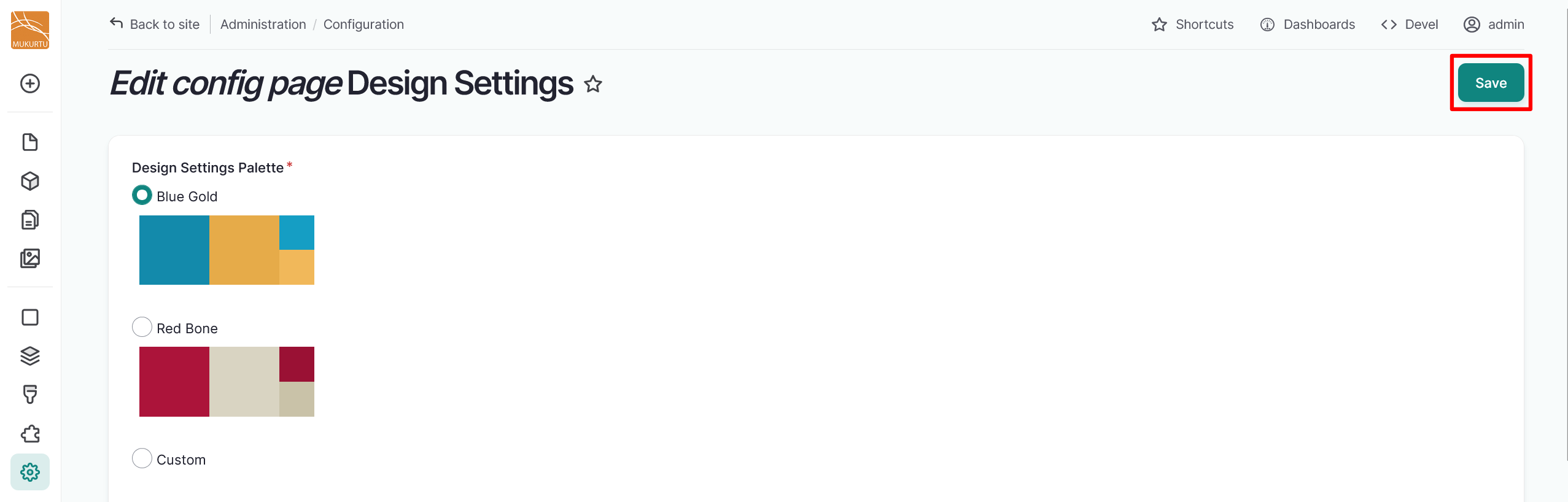
Select the "Save" button to apply your color palette site-wide.
Configure the custom palette
Please note, this is an experimental tool. Our stock palettes are selected to meet accessibility requirements and custom color selection is not covered by our tests. For more control over the colors, consider implementing a subtheme.
-
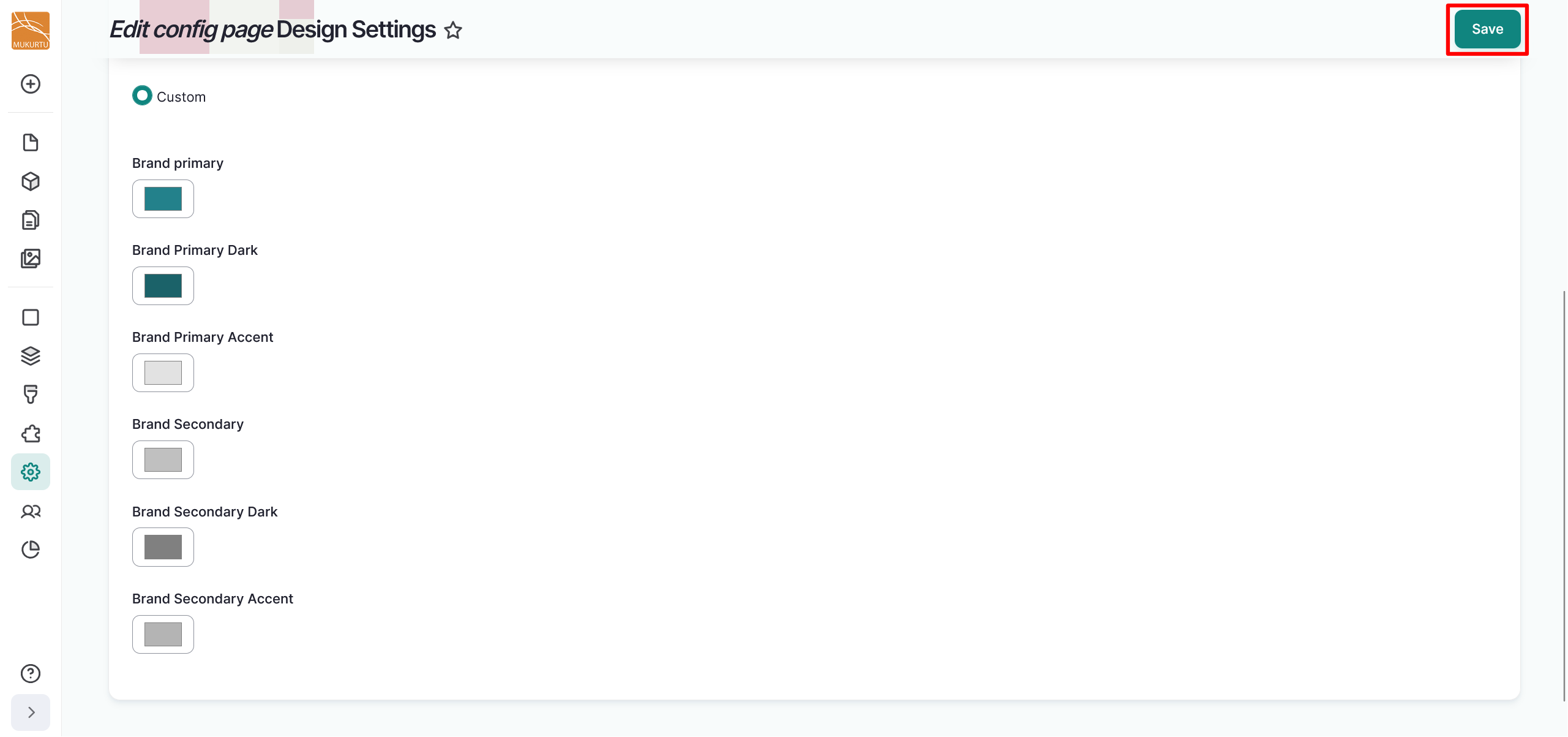
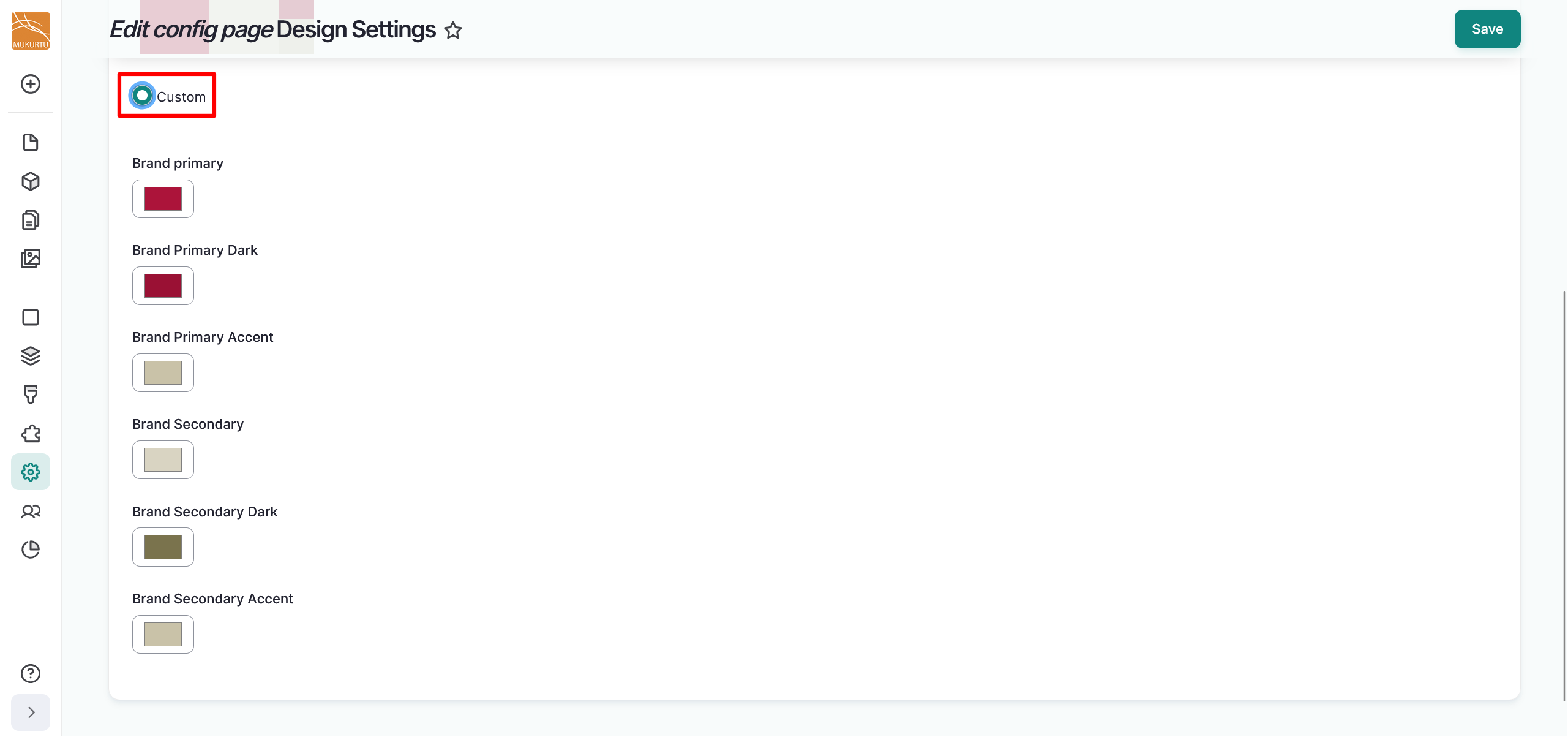
Select the Custom radio button.
-
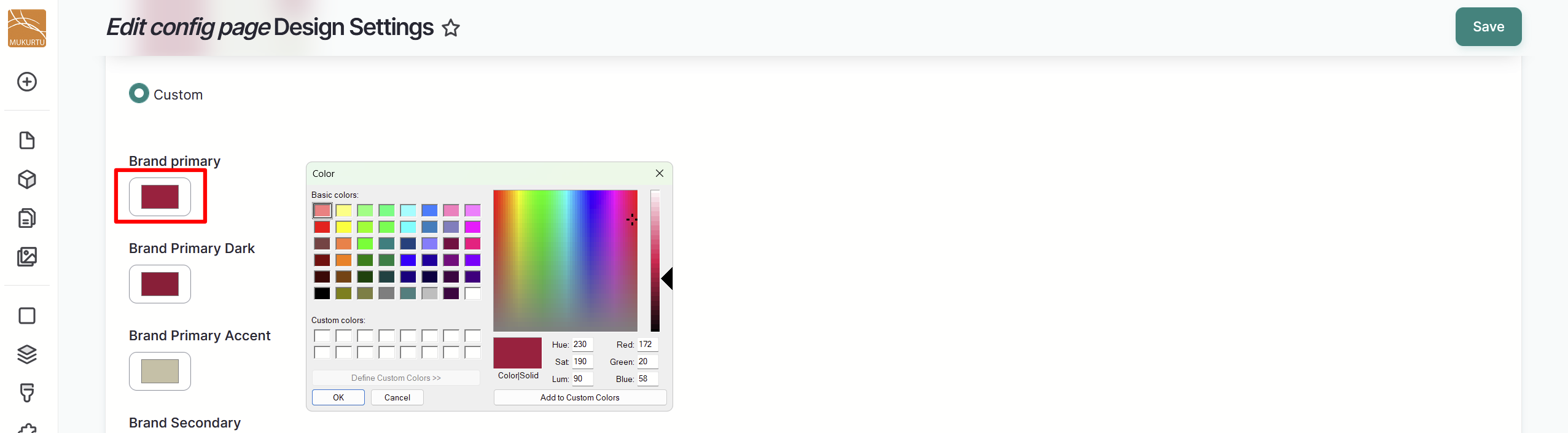
Select the color selector for the colors you want to edit.
-
Use the Color modal to select the color you want to apply. You can select from basic colors or add custom colors.
- Select a basic color using the Basic Colors section of the modal.
-
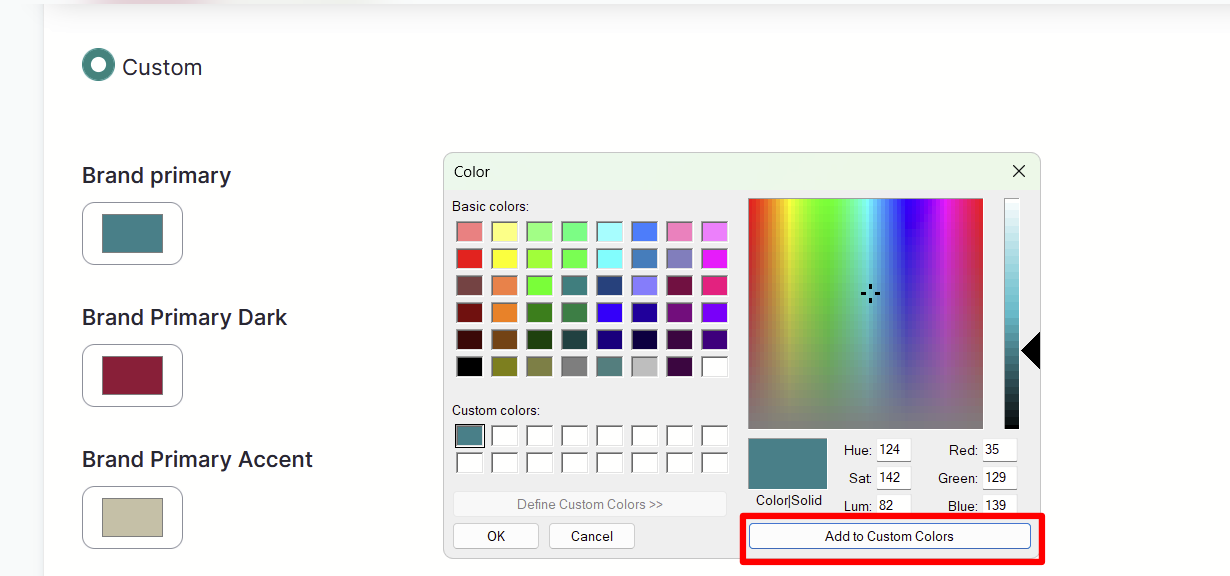
To select a custom color, use the color selector on the right-hand side of the modal. You can use the HSL (Hue Sat Lum) or the RGB (Red Green Blue) fields to specify colors.
- To save a custom color, select a blank Custom colors box before you input your custom color on the right. Select "Add to Custom Colors" to add the color to your custom colors.
-
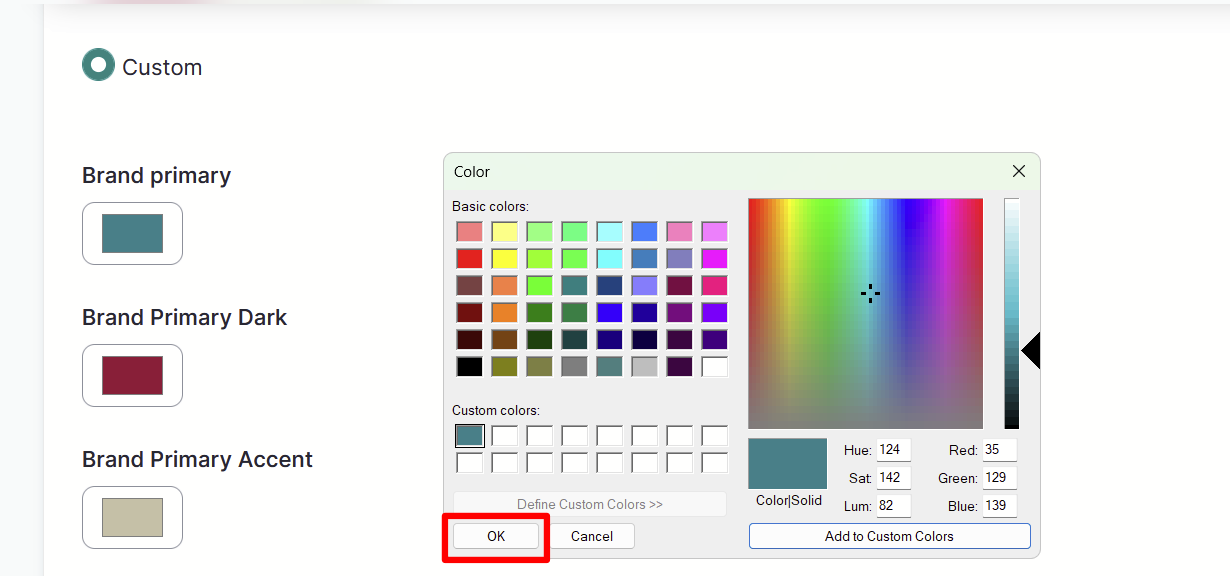
Select the "Ok" button to apply your chosen color to your custom palette.
-
Select the "Save" button to apply your color palette site-wide.