Create User Accounts as a Community Manager
Administrators, Mukurtu managers, and community managers are able to create new user accounts. This article walks you through creating a user account as a community manager. To create user accounts as an administrator or Mukurtu manager, see Create User Accounts from a Site-Wide Role.
There are two ways to access the new user form as a community manager:
-
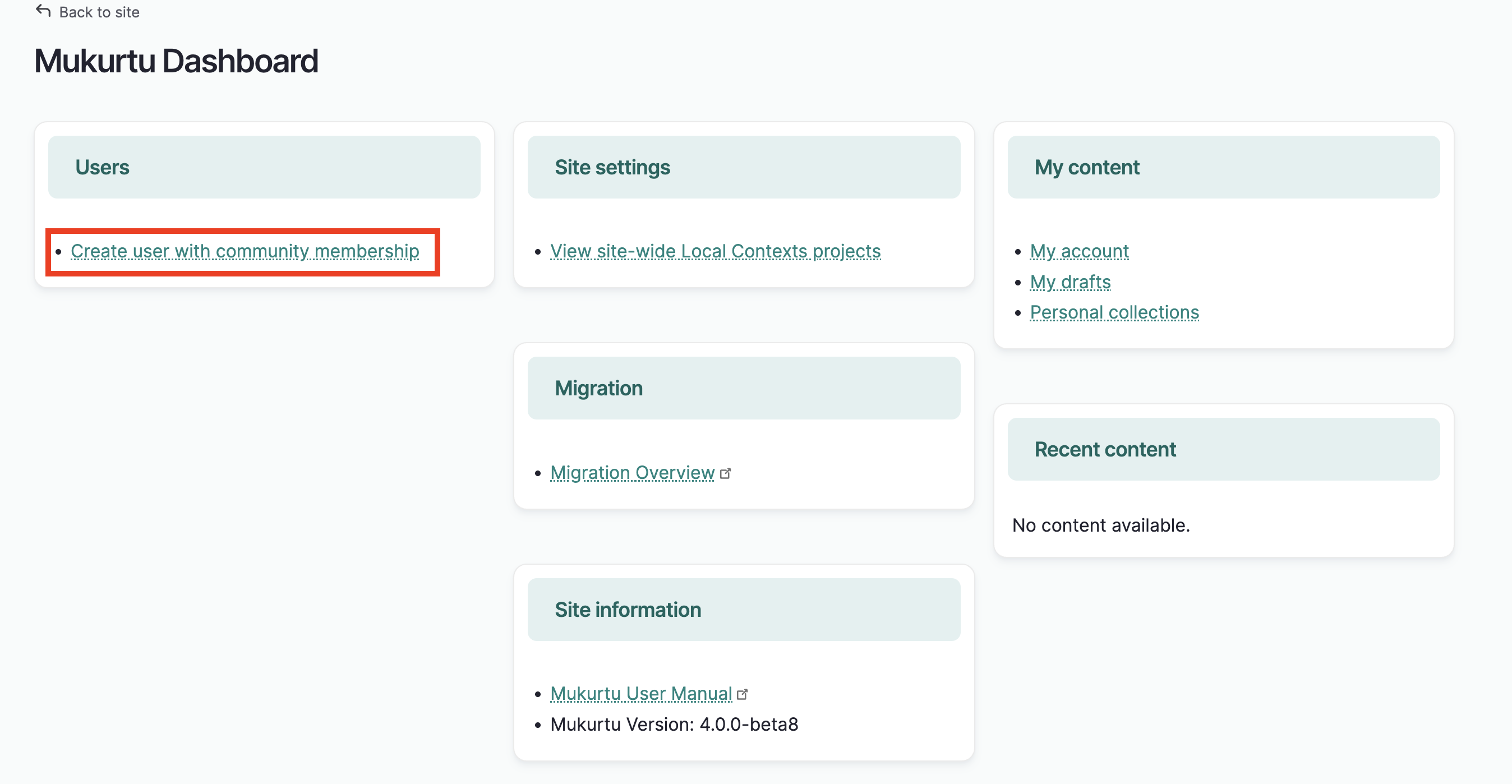
From the dashboard, select Create user with community membership.
-
Add
admin/communities/create-userto the end of your URL (i.e.mymukurtusite.org/admin/communities/create-user).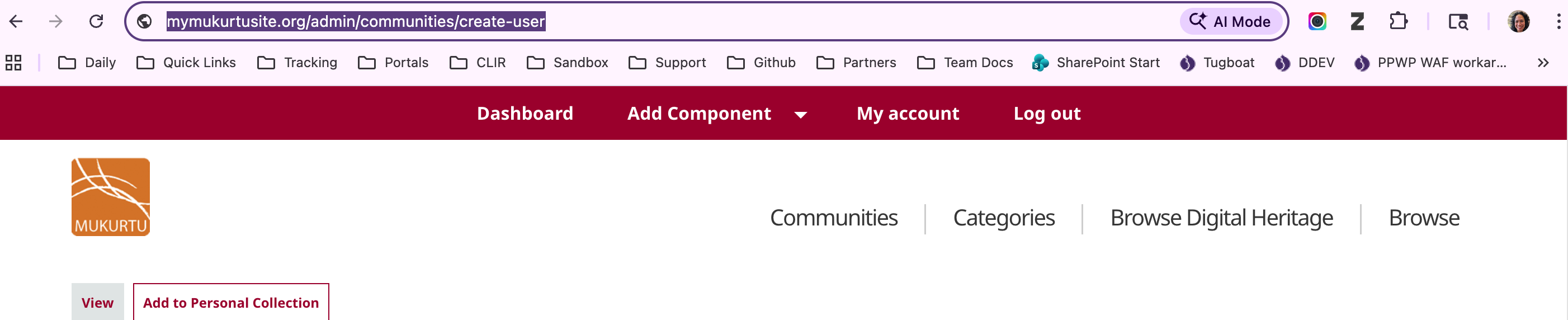
-
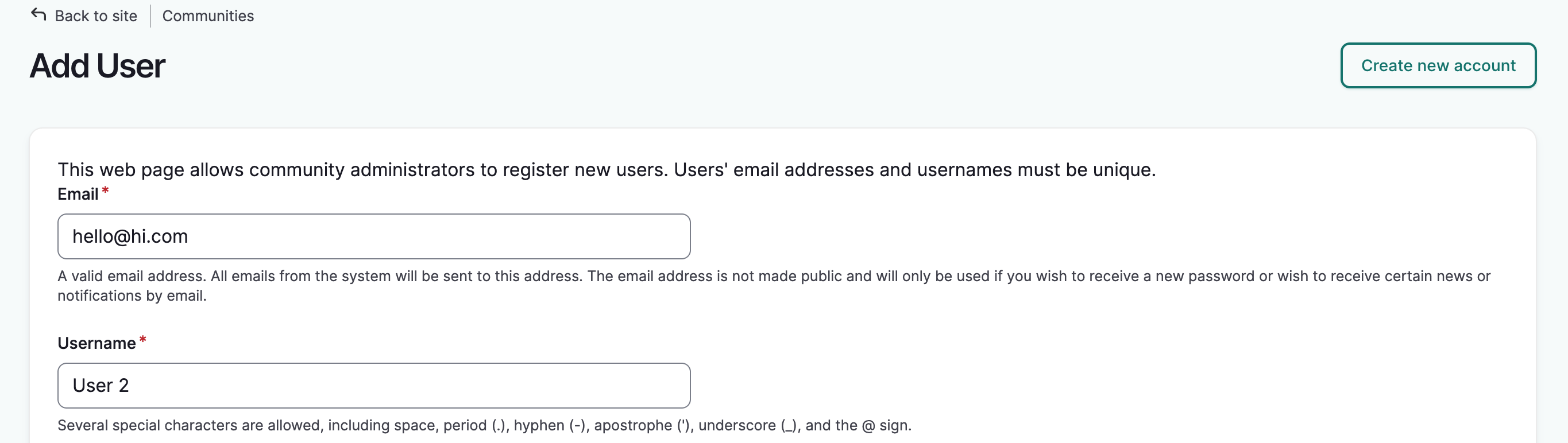
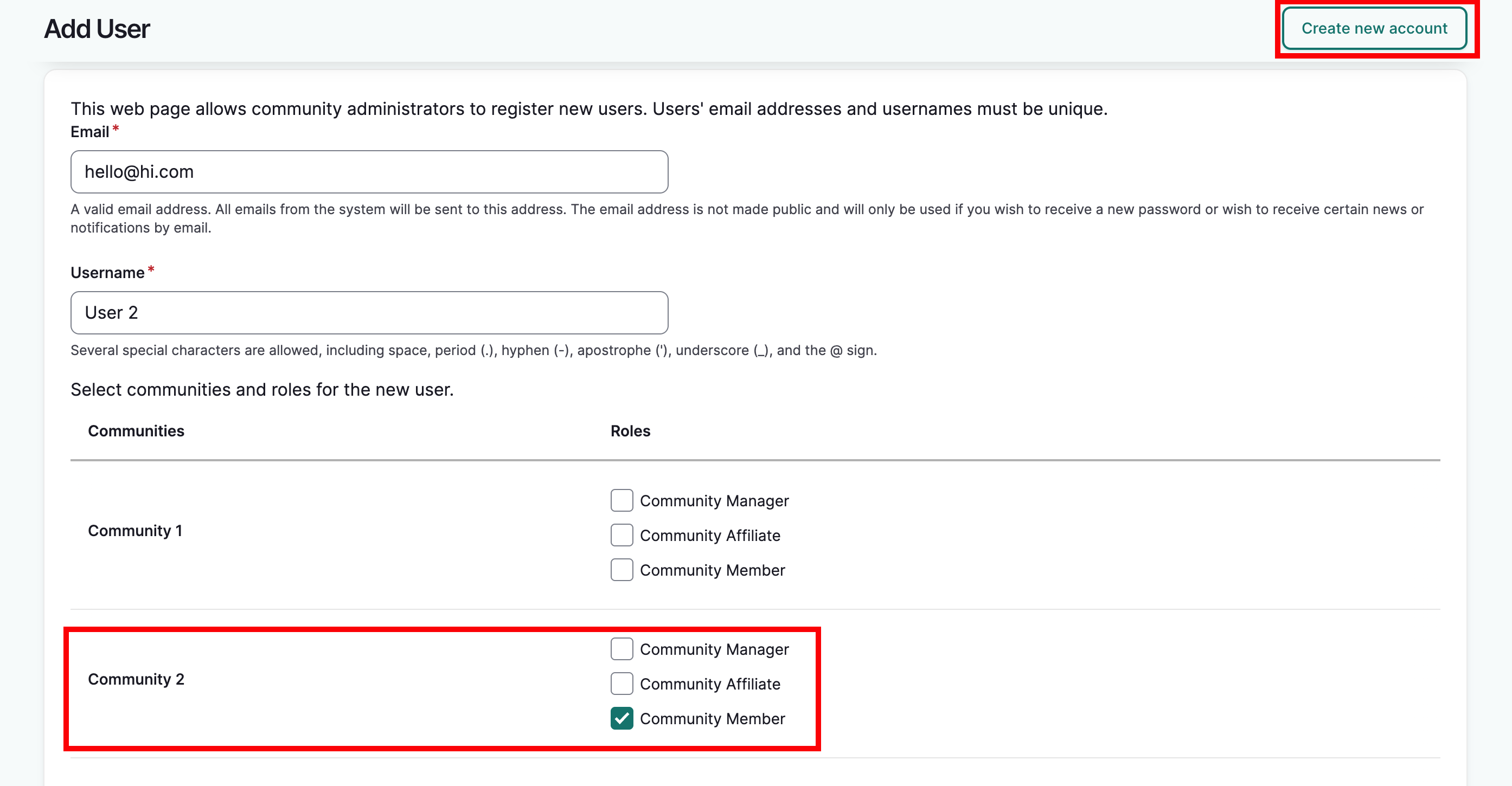
Once the form is open, add the user's email address and username.
-
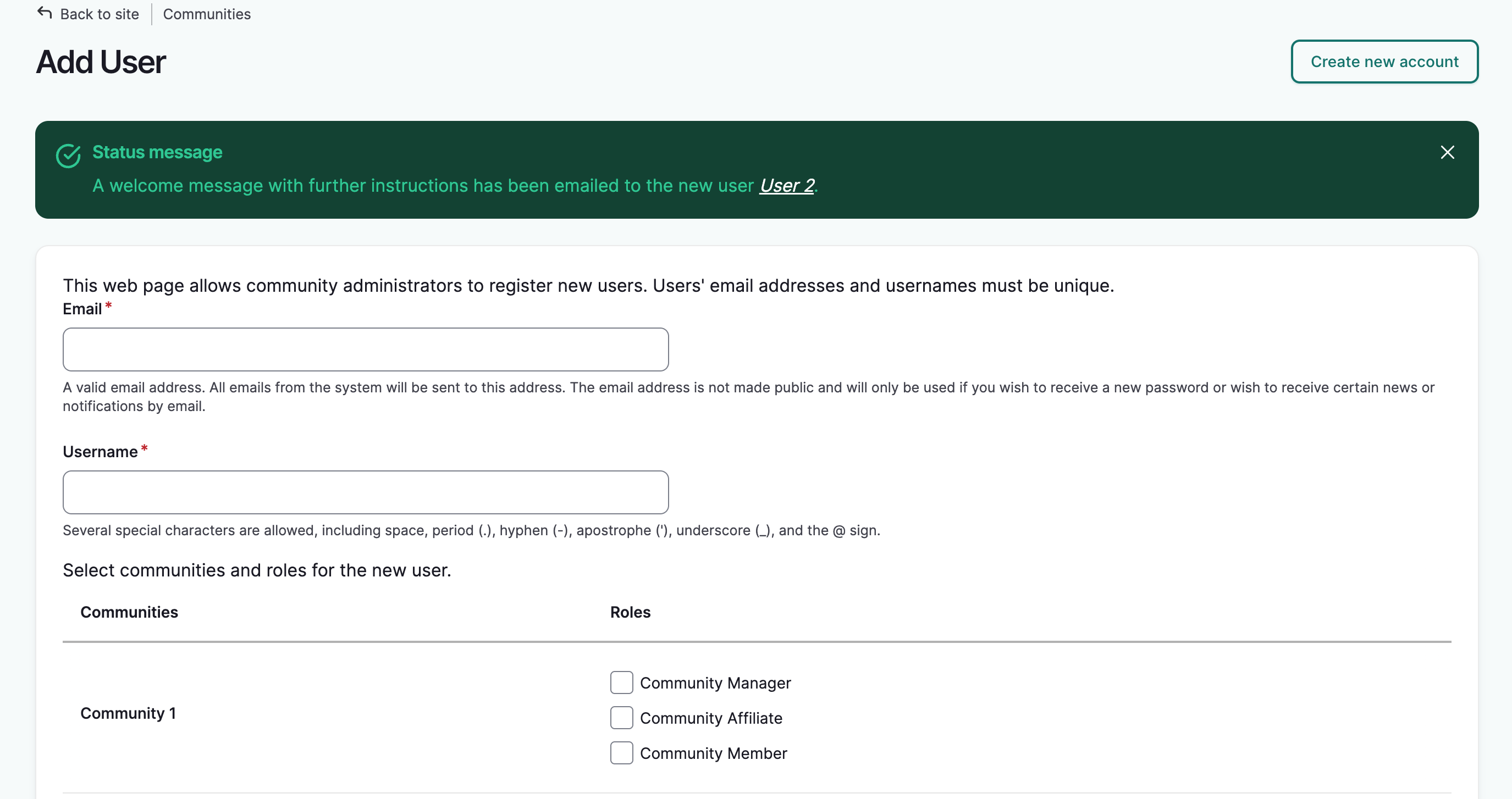
A list of communities that you manage will appear at the bottom of the form. Select the appropriate role(s) for each community the user will be added to.
-
When you are finished, select "Create new account."
The form will re-load and a success message will be displayed. The user account will be created with the user enrolled in the selected community(ies) with their specified user role(s). You can fill and submit the form as many times as needed.