Using Labels and Notices
User roles
Protocol steward, contributor, language contributor, language steward, community record steward
Local Contexts labels and notices can be applied to all content within Mukurtu:
- Collections
- Dictionary words
- Word lists
- Digital heritage items
- Person records
Note that applying labels and notices to collections and word lists only affects their respective pages, NOT the content within the collection or word list.
Requirement
The following steps can only be applied after you have configured your Local Contexts projects and added them to your Mukurtu site.
To learn more about configuring Local Contexts projects and labels, visit the Local Contexts article Getting Started on the Hub.
To learn more about adding Local Contexts projects to your site, see Manage Local Context Projects.
Proceed with the steps below when you have added your Local Contexts project(s) to your site.
Apply labels to content
Labels and Notices can be selected when creating or editing content.
There are two ways to select Local Contexts labels and notices:
- Apply an entire project
- Apply individual labels and notices
You can apply entire projects to content, select labels and notices from within projects, or a combination of the two.
Warning
If you select an entire project, do not also select individual labels or notices from that project, since they will be displayed twice.
Apply an entire project
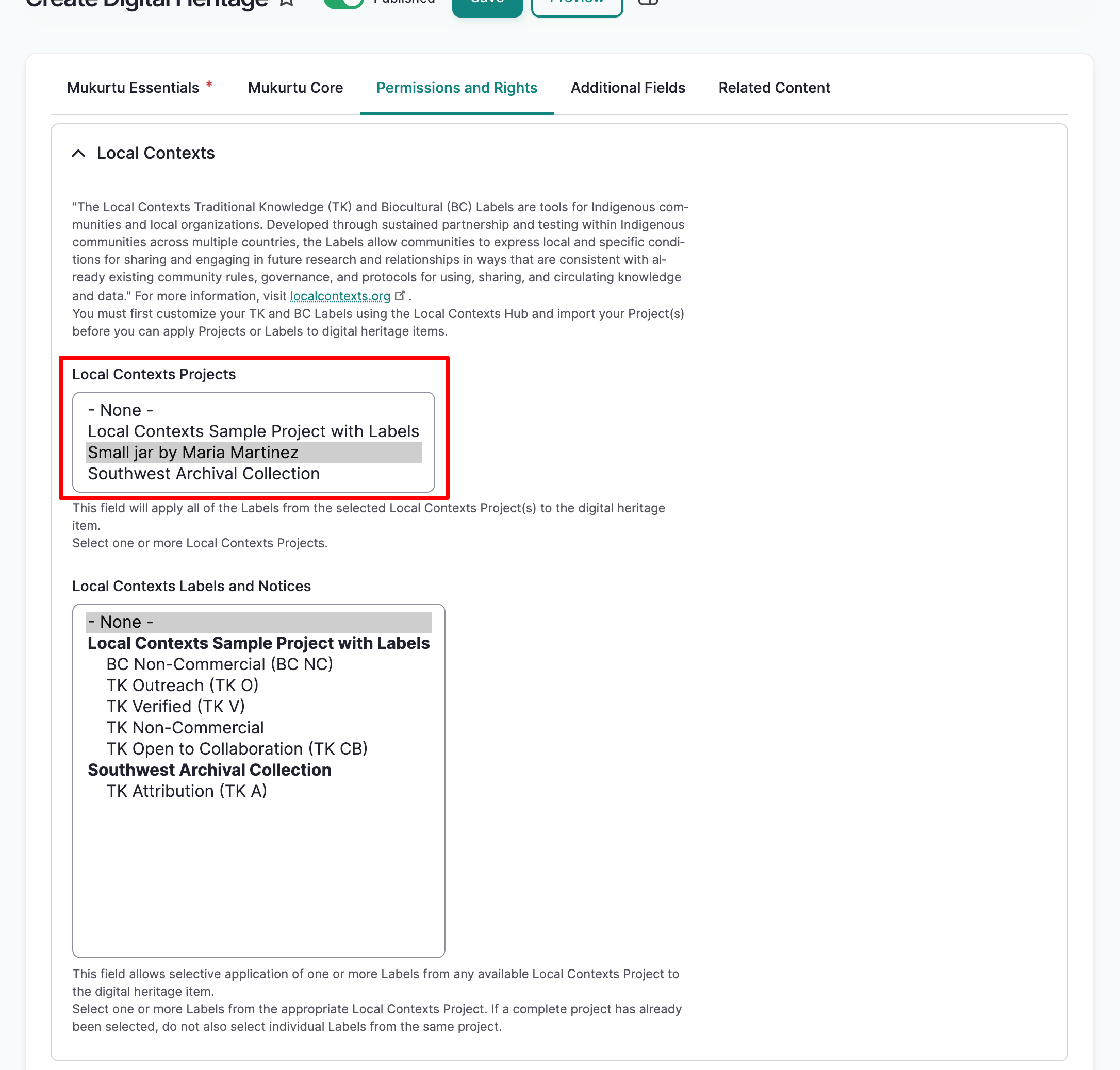
The Local Contexts Projects field allows you to apply ALL the labels and notices within a project to your content.
In the Local Contexts Projects field, select the project you wish to apply.
Apply individual labels and notices
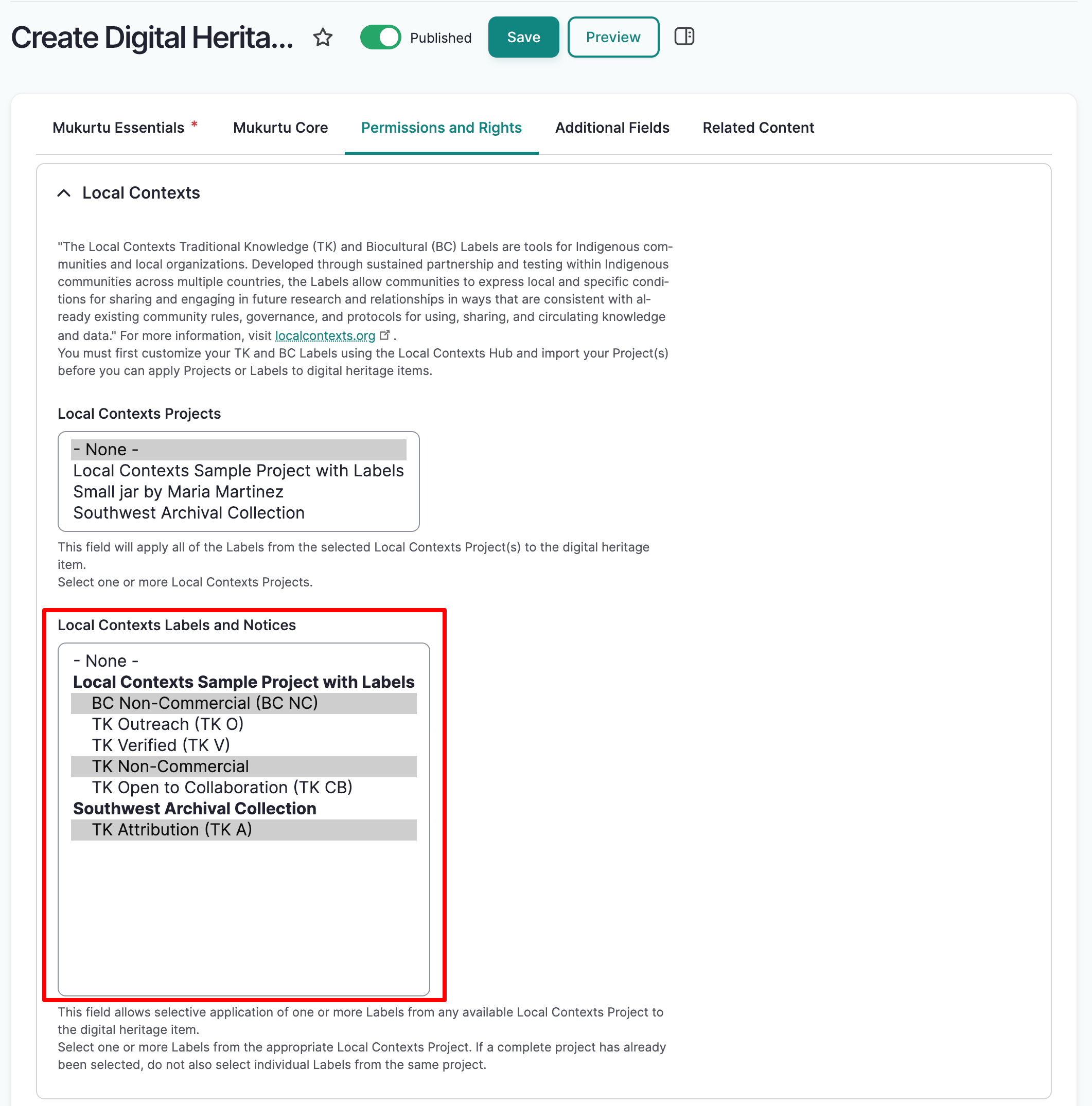
The Local Contexts Labels and Notices field allows you to select individual labels and notices to apply to your content.
In the Local Contexts Labels and Notices field, select the labels and notices you wish to apply.
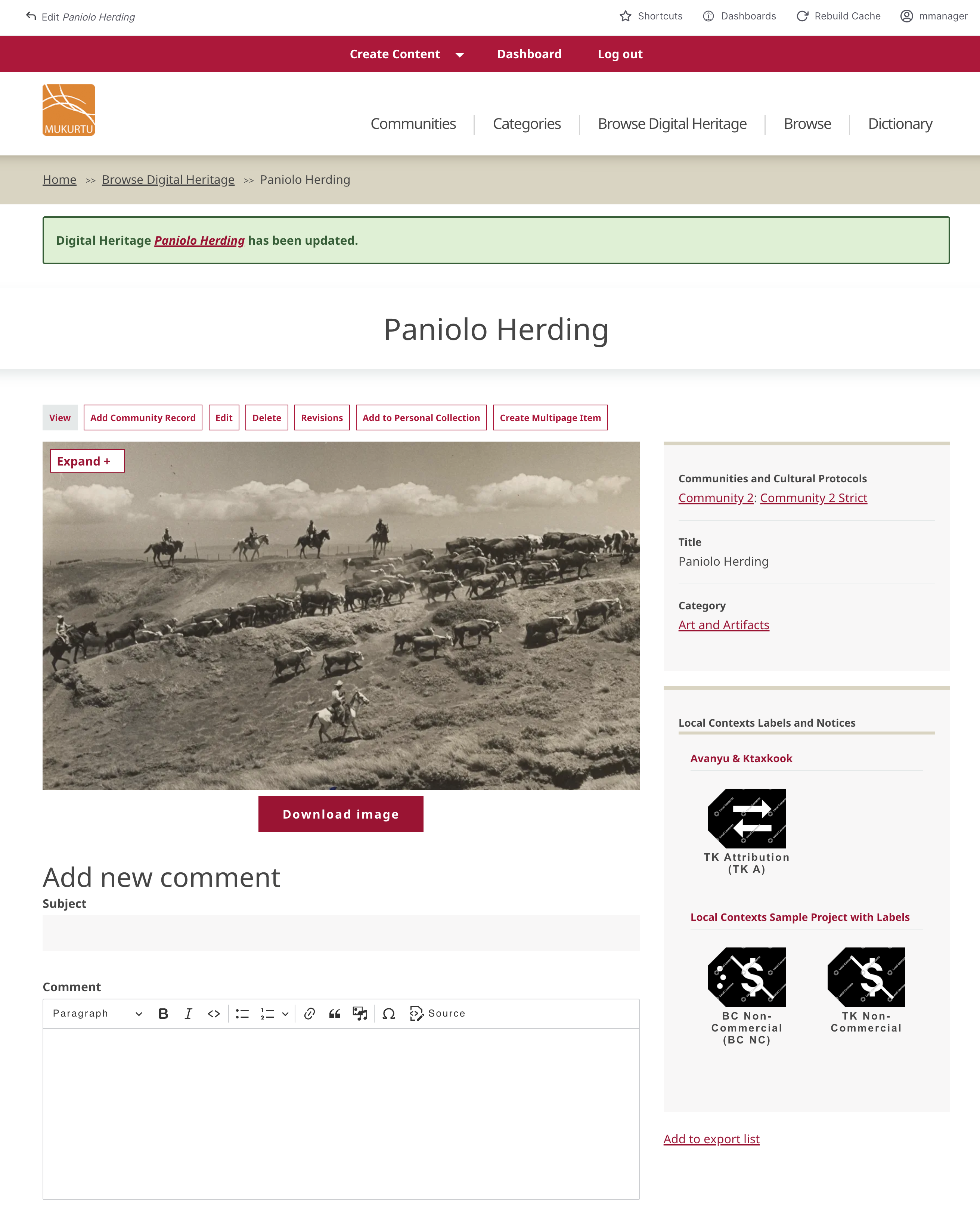
Complete the rest of your content form and select save. Your content will load and the labels and notices you applied will appear in the sidebar.