Create a Dictionary Word
User Roles
Protocol steward, language steward, language contributor
This article will walk you through creating a dictionary word and using word entries.
Requirement
Before you can create a dictionary word, you must first configure the dictionary. See Configuring the Dictonary
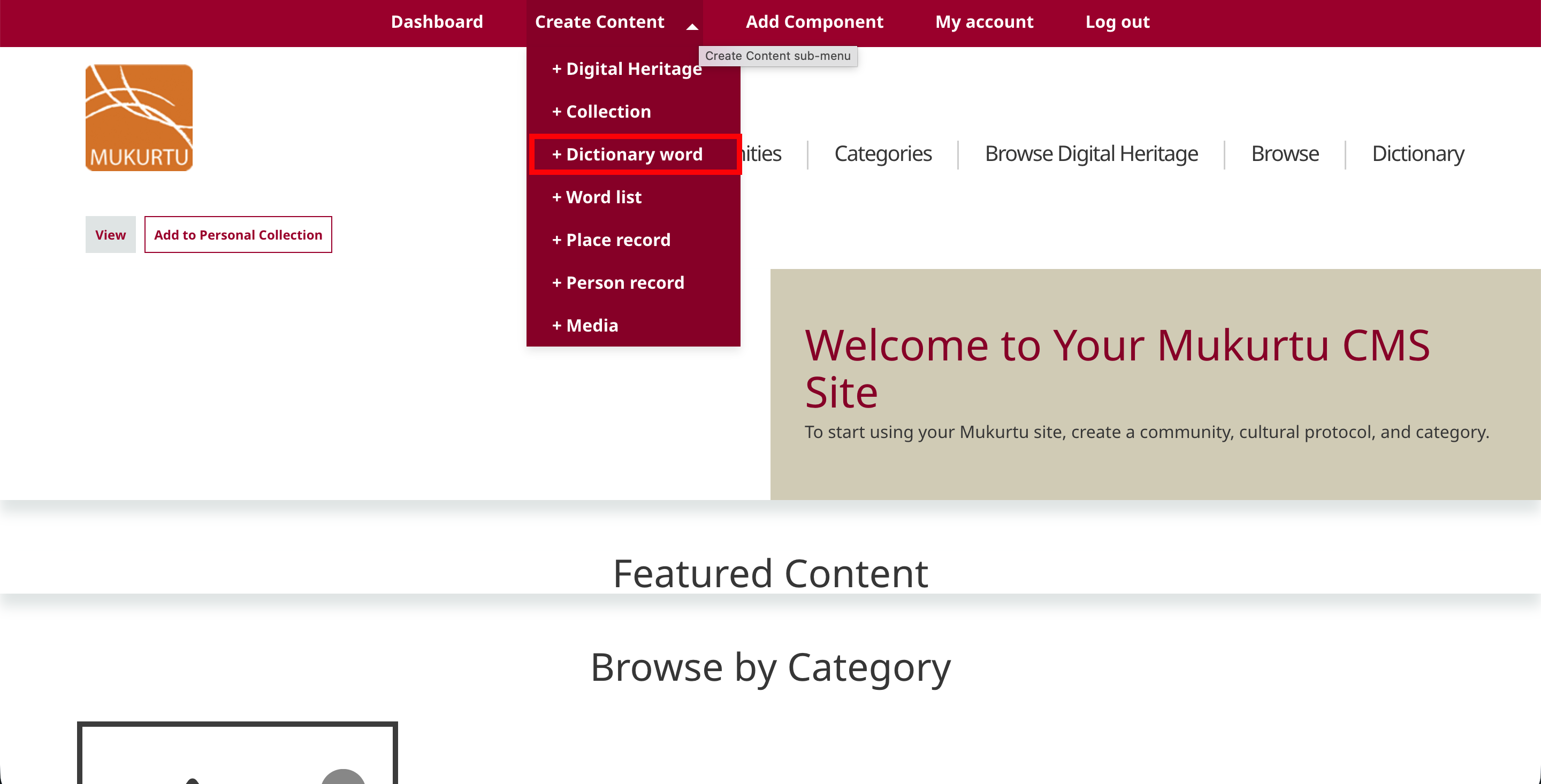
To create a dictionary word, as a protocol steward, language steward, or language contributor, from the Create Content menu, select Dictionary word.
Mukurtu Essentials
Term
Add a term in the language of the dictionary. This may differ from the site language. This is field is flexible and could be a word, phrase, a prefix/suffix, or other language element.
-
This is a required field
-
255 characters max.
Protocol
Use the toggle to assign at least one cultural protocol to your dictionary word.
- This is a required field.
Tip
Protocols determine a user or visitorʻs appropriate level of access to the dictionary word. For more on cultural protocols, see Understanding Communities and Cultural Protocols.
Sharing Setting
For content with multiple protocols assigned, sharing settings help to determine a content item's level of access. The setting is a choice between all or any. By default all will be selected.
All: An item with multiple protocols may only be viewed by members of ALL assigned protocols.
Any: An item with multiple protocols may be viewed by a member of ANY assigned protocols.

- This is a required field.
Tip
For more on sharing settings, see Understanding Sharing Settings
Language
Requirement
Dictionary languages must first be configured by Mukurtu Manager. To learn how to configure a language, see Configuring the Dictionary
Select a language. If only one language is available, it will be pre-selected.
- This is a required field.

Glossary Entry
Tip
Custom indexing can be applied by configuring glossary settings. See Configuring the Dictionary for detailed instructions.
The glossary entry field can be used in cases where you do not want the term to be indexed under the first character of the term. This field allows you to choose a different character under which to index the term. To use this field, enter the character you would like the term to be indexed under.

Alternate Spelling
Use this field to add an alternate spelling of the word. Examples include historic spellings, regional differences, or popular spellings.
- 255 characters max.
Translation
Add the closest one to one translation of the term in the language of the site.
-
To add additional translations, select Add Another Item
-
To reorder multiple translations, select the arrows and drag them up or down.
-
255 characters max.
Recording
Add an audio recording of the term being spoken by selecting "Add Media." There is no limit to the number of recordings you can add. For example, you may want to include recordings of older and younger speakers, or male and female speakers.
- This field only accepts audio files.
Tip
For detailed instructions on uploading an audio file, see By type media upload: Audio
Definition
Add a definition of the term. This may be a one to one translation, or it may include more nuanced meanings, including historic or contextual meanings. You may also include most history of the background or etymology of the word. This is a rich text field, which can accommodate formatting and additional media.
Sample Sentences
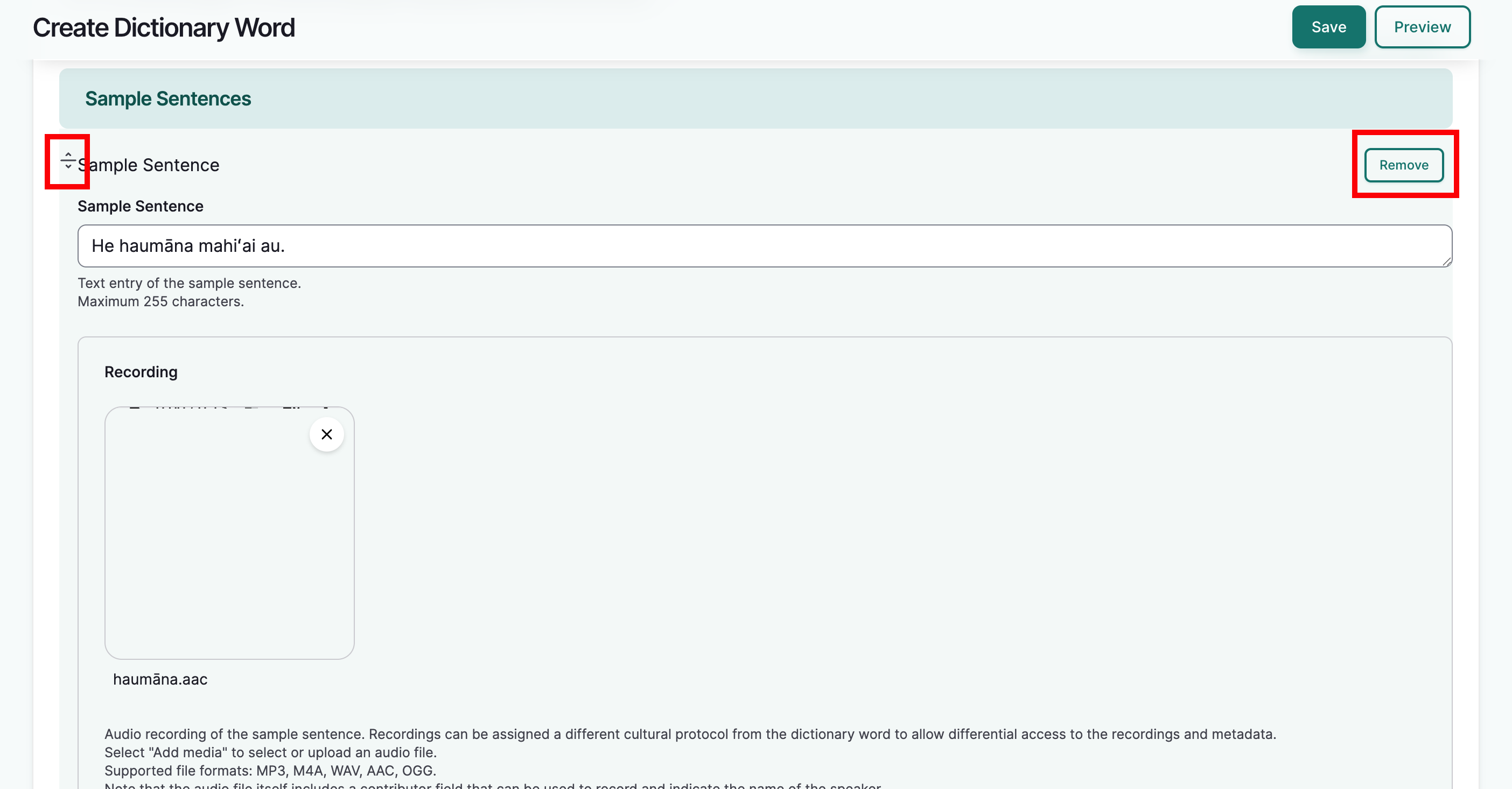
Sample sentences can be used to demonstrate use of the word. You may add an unlimited number of sample sentences. They can be text, audio, or both combined.
-
Enter a sentence or phrase.
- 225 characters max.
-
Select Add Media to add a recording. Only one recording per sentence can be added.
-
To add additional sample sentences, select Add Sample Sentence. Sample sentences can be reordered by selecting the arrow and dragging it up or down.
-
To remove a sample sentence, select "Remove" in the top right corner of the sample sentence field. Select "Confirm Removal" to confirm.
Word Type
This field can be used for parts of speech, syntactic or grammatical categories.
Include as many word types as needed. Select existing word types or add new ones. Drag to reorder word types. Select the "x" to delete.

Pronunciation
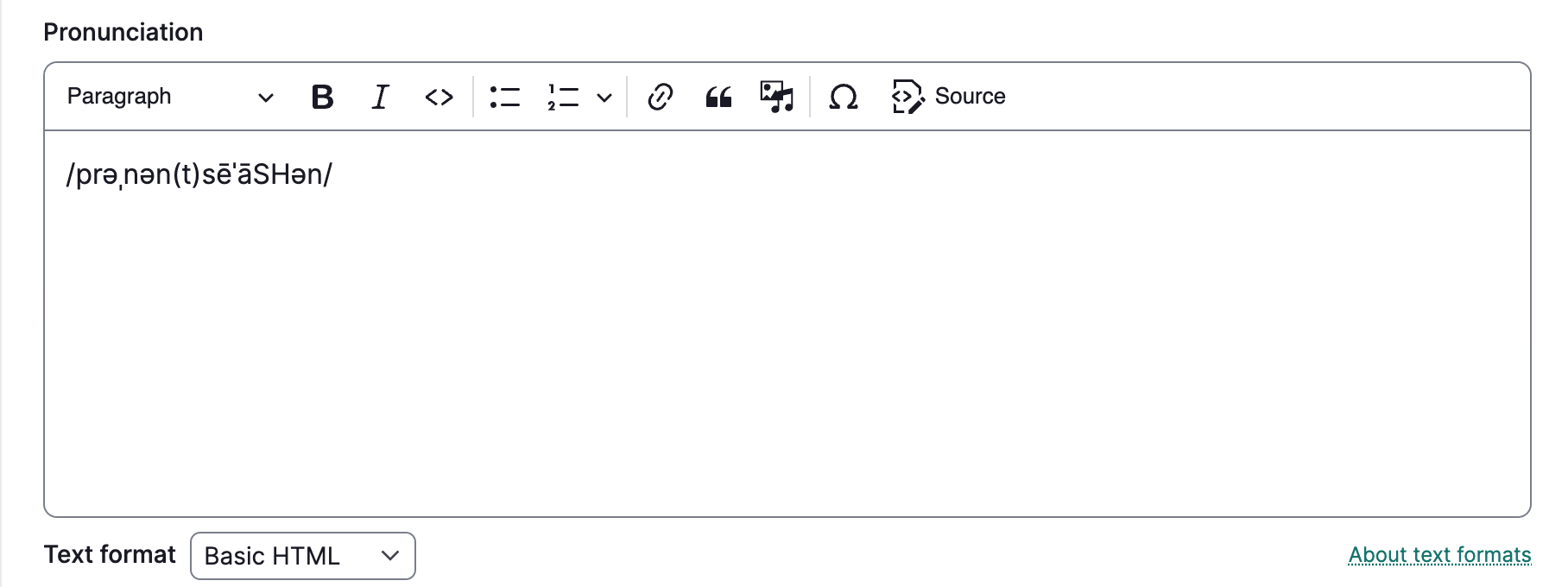
Add a pronunciation guide. This field can accommodate the notation system used by speakers and teachers of the language. It can also support rich text and embedding media assets.
Source
Enter a source. Examples include a speaker, teacher, existing dictionary, language learning materials, or regions where this word is used.
- 255 characters max.
Word Origin
Enter information about the history or etymology of the entry. This may include the origin language of a borrowed word or the date a word came into the language.
- 255 characters max.
Contributor
Enter any entities (people, groups, tribes, clans, etc.) who aided in making the entry. Names can appear in any format. Include as many contributors as needed. Select existing contributors or add new ones. Drag to reorder contributors.
Word Entries
Word entries are multiple entries that appear under one term. This allows you to capture additional meanings, conjugations, gendered or plural forms, etc. The metadata for a word entry is the same metadata in the Mukurtu Essentials tab, with the exception of cultural protocols, sharing setting, language, and glossary entry since those apply to the dictionary word as a whole. Please refer to Mukurtu Essentials
You can add an unlimited amount of word entries by selecting Add Word Entries at the bottom of the word entry page.
Additional Fields
Thumbnail
Thumbnails can help you quickly identify a term. Select Add media to select from previously uploaded images or upload a new image. Thumbnail images generally maintain a 4:3 ratio. Anything larger than this will be cropped to that size in display. The image files themselves will not be altered. Thumbnails will resize responsively to smaller screen sizes. We recommend minimum dimensions of 800x600px for best rendering.
Media Assets
You can add media assets to your dictionary word. Select Add media to select from previously uploaded media or upload a new media asset. There is no limit to the number of media assets you can add.
Keywords
Keywords are terms used to describe content to ensure that the item will be discoverable when searching or browsing. They are more flexible and specific than categories. Include as many keywords as needed. Select existing keywords add new ones. Drag to reorder keywords. Select the "x" to delete.
Locations
Location tools are available for all content types, including dictionary words. These tools could be used to map the regional usage of words and phrases, associate words with specific locations, and add rich descriptions to locations that are associated with words.
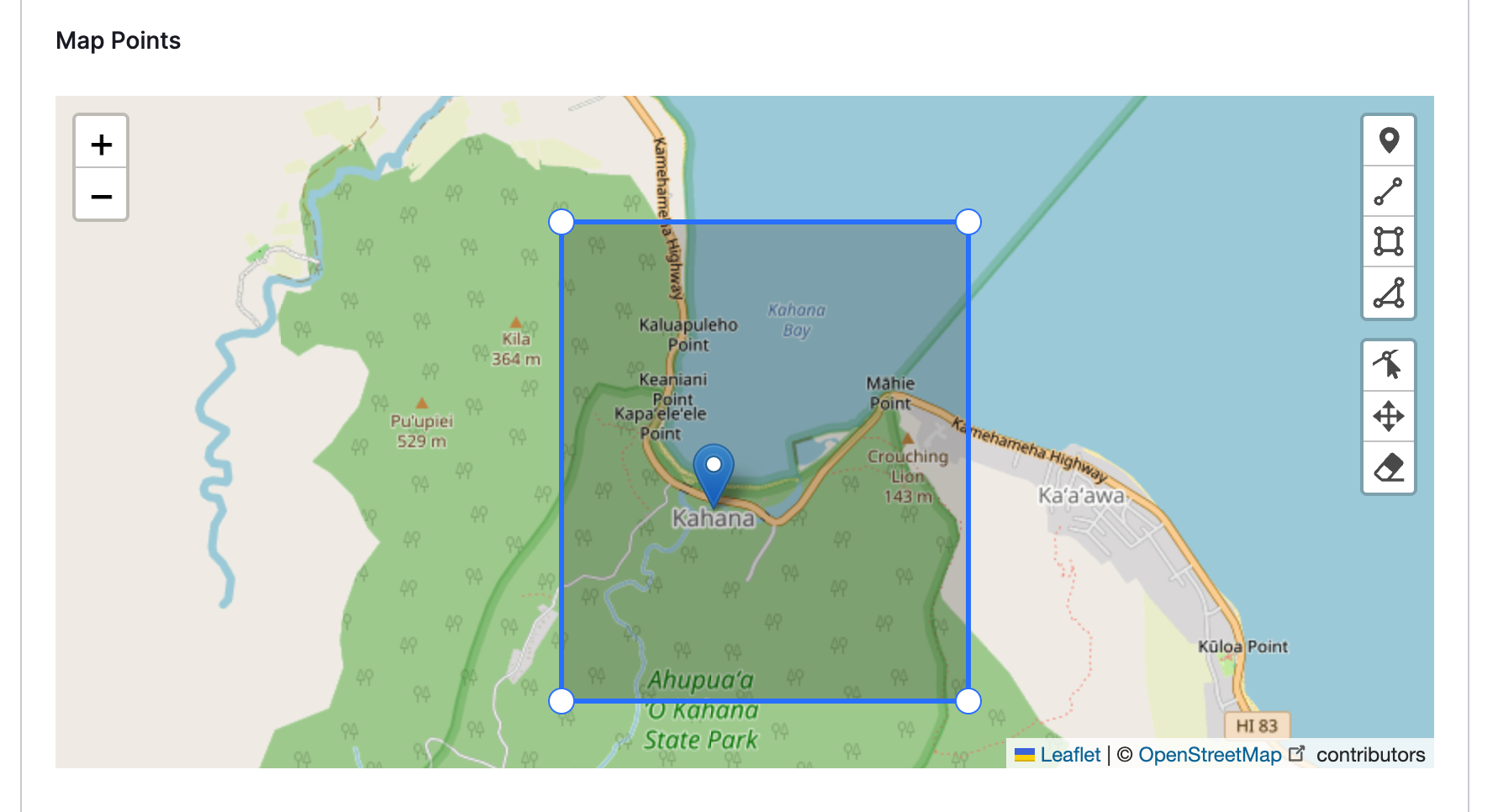
Map points
Mukurtu allows users to create and manage map points and areas using the embedded Leaflet maps. For detailed instructions on how to include Map Points, visit Create Map Points
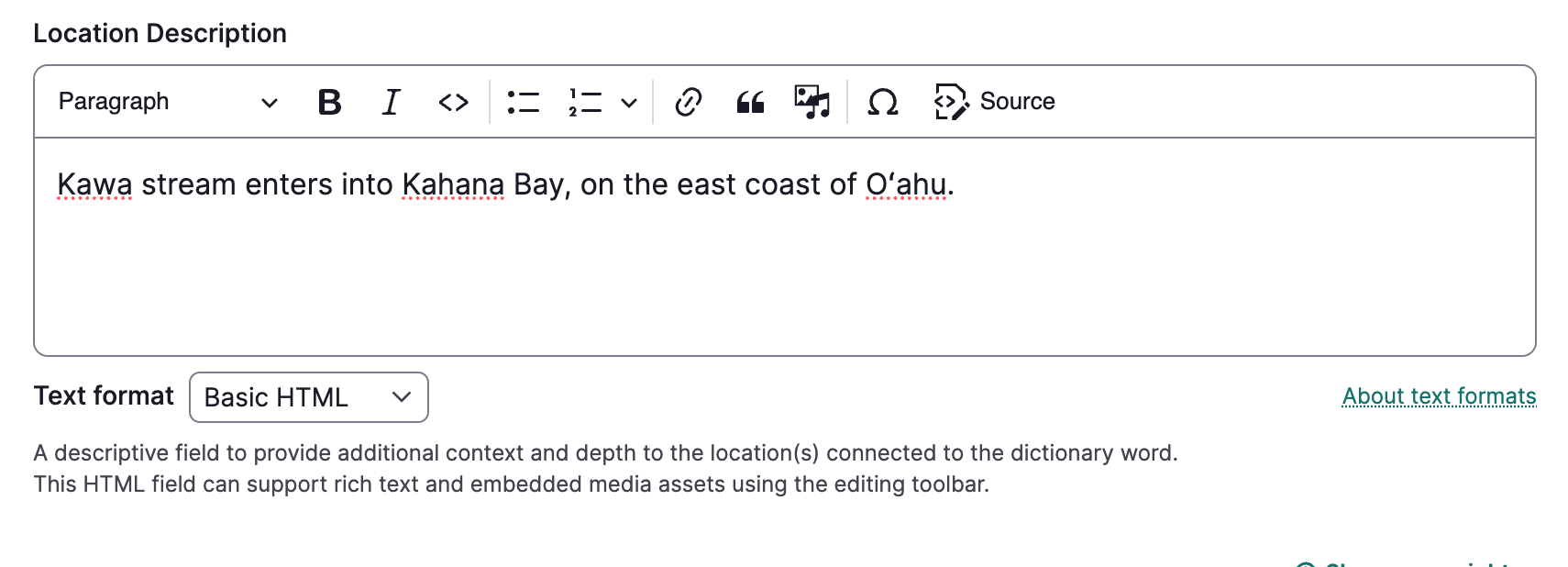
Location description
Use the Location description to provide a text or media reference to a geographical location.
- Location description is a rich text field that allows for longer descriptions or more information about the place(s) referenced in the content.
- It may be useful in cases where a general description of the places are provided, or more context is necessary.
-
Location description can be used independently of other location fields and is a full HTML field that supports text, audio, images, and video.
Location
Enter a Location.
Location is a taxonomy field which can be useful to label and connect content using the same term.
Include as many locations as needed. Select existing locations or add new ones. Drag to reorder locations. Select the "x" to delete.

Local Contexts
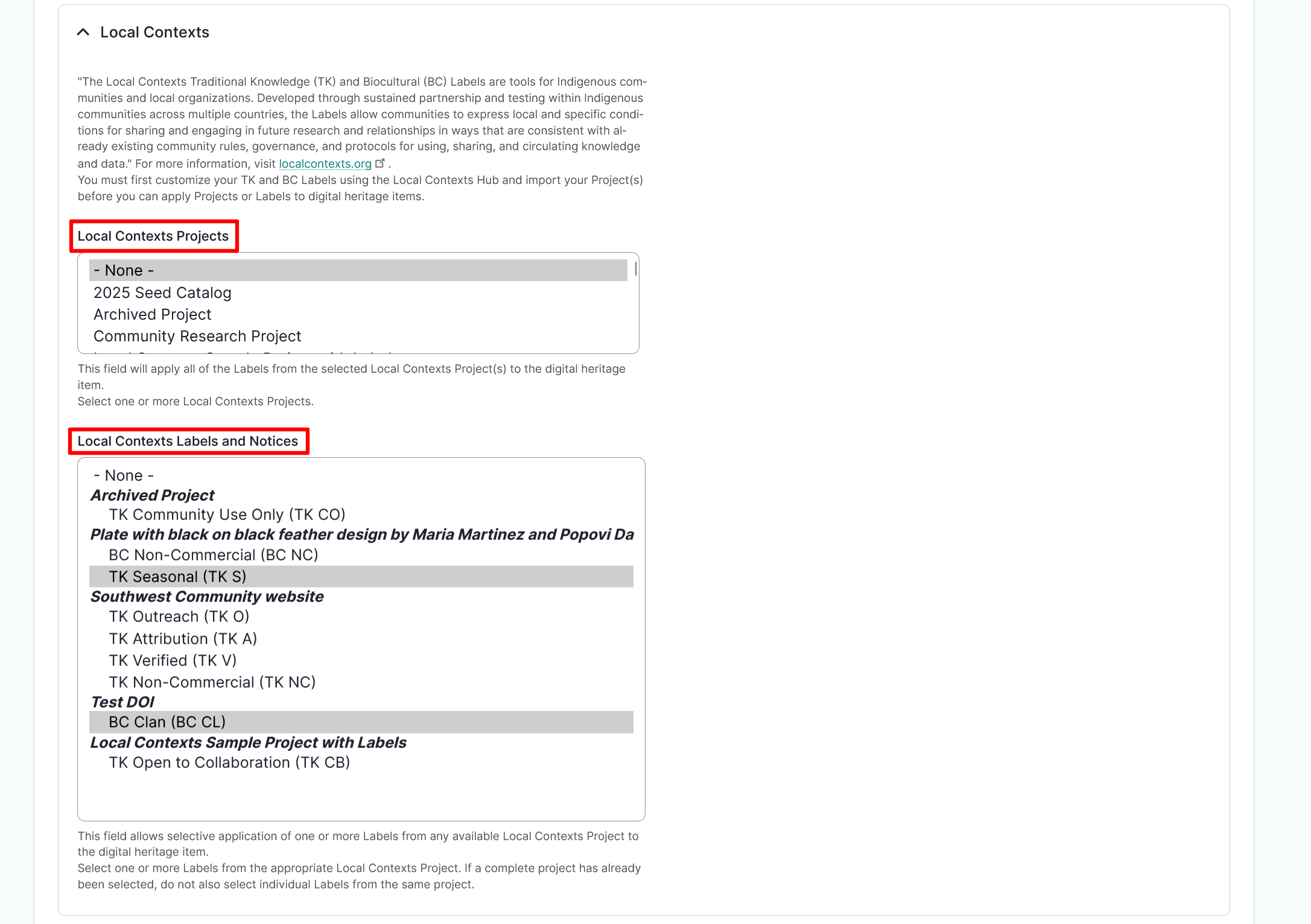
Use the Local Contexts field to apply Traditional Knowledge labels to your dictionary word. To start a project or for more information refer to Understanding the Local Contexts Hub or visit Local Contexts.
Select your Local Contexts project from the list. This field will apply all of the Labels from the selected Local Contexts Project(s) to the dictionary word.
Local Contexts Labels
Select one or more Labels from the appropriate Local Contexts Project.
Tip
If a complete project has already been selected, do not also select individual Labels from the same project.
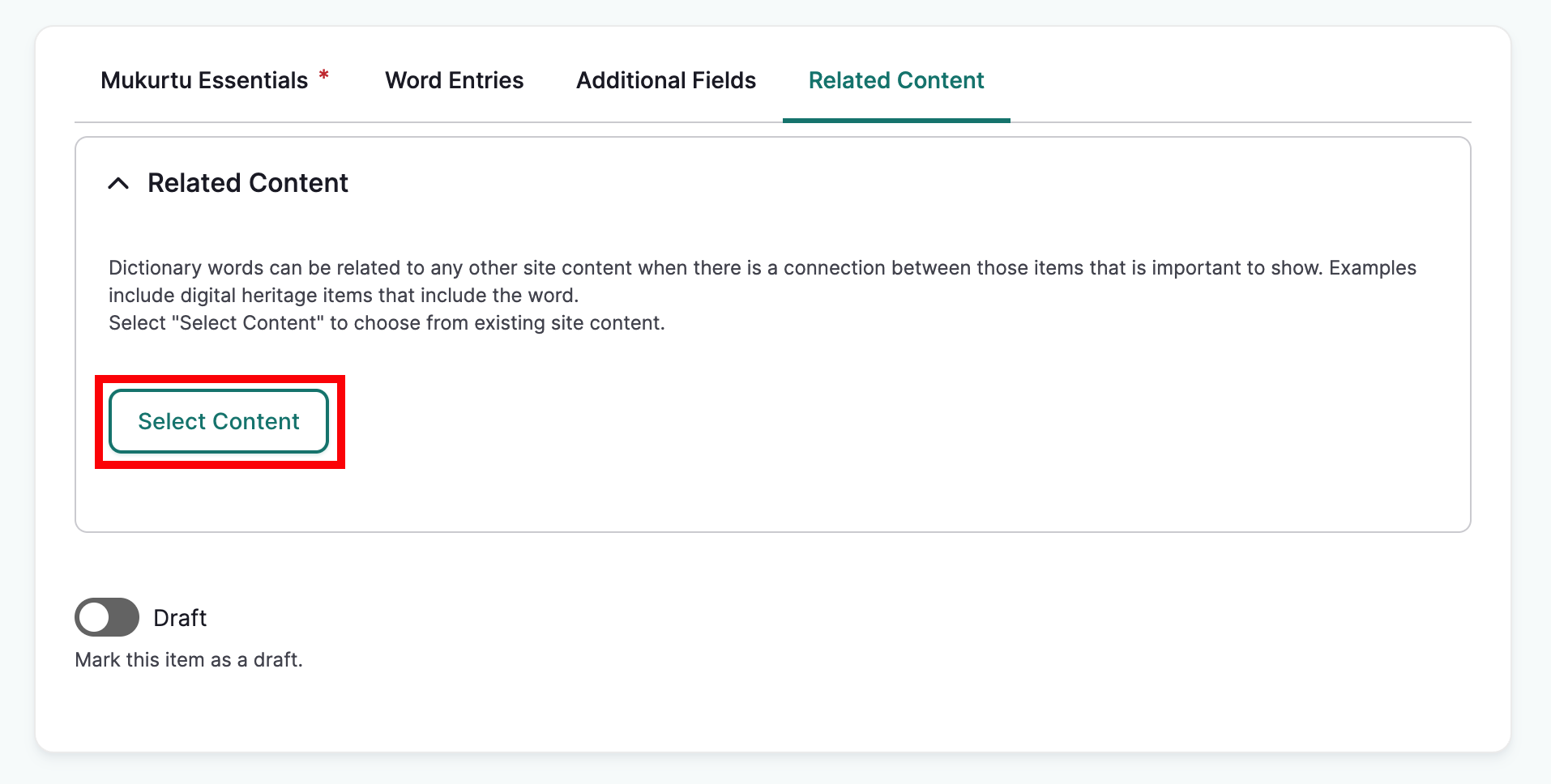
Related Content
The related content field can help provide connections between your dictionary word and other site content or to help guide users when browsing content. Examples include stories, oral histories or songs that use the word, photos displayed as digital heritage items that depict the word, or person records for language speakers.
-
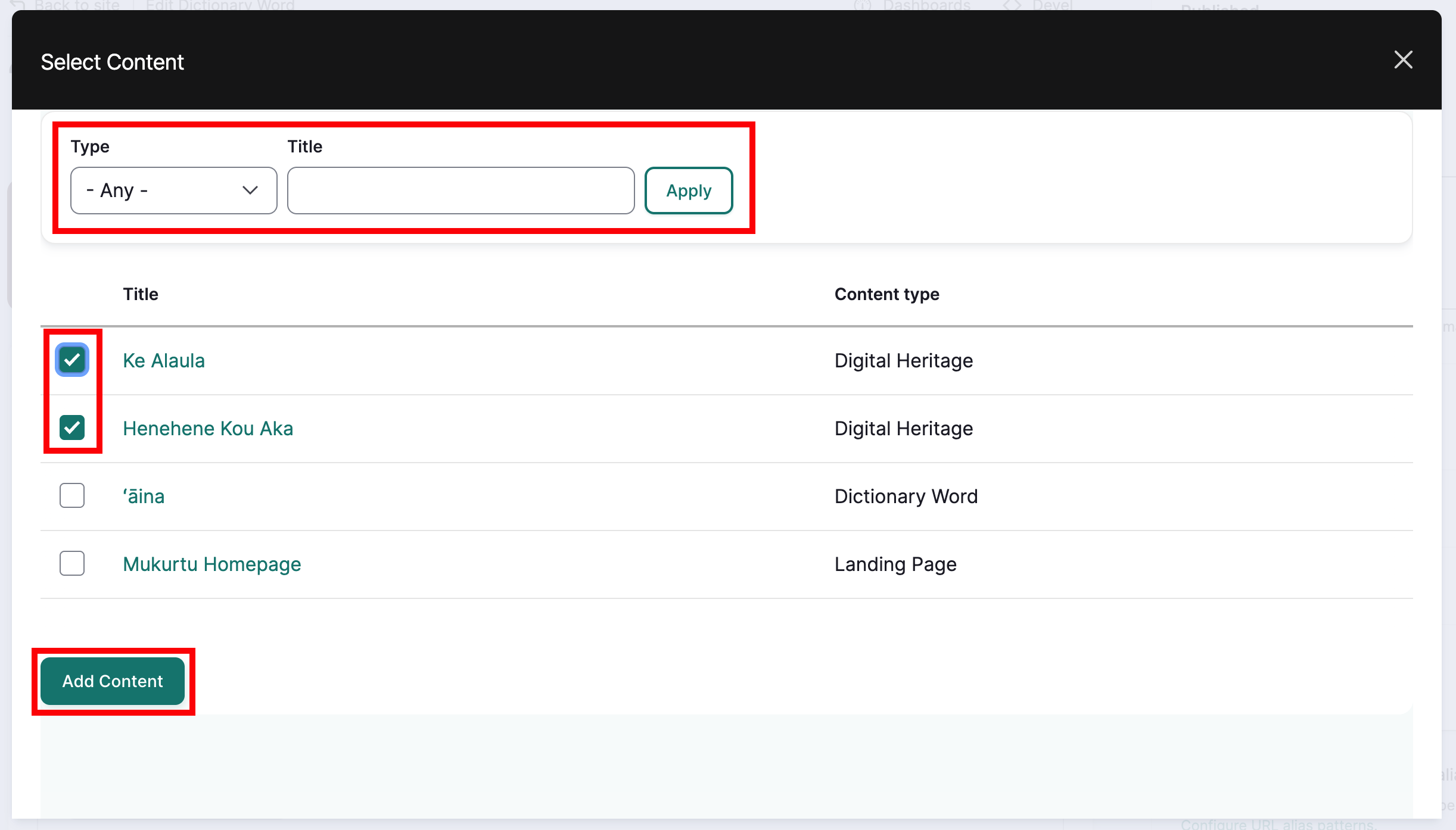
Select the "Select content" button. Additional digital heritage items, person records, other dictionary words, and other content can be included as related content.
Tip
You can filter content by type or search by title.
-
Select the checkbox beside all the content you wish to include as related content, then scroll down and select "Add Content".
-
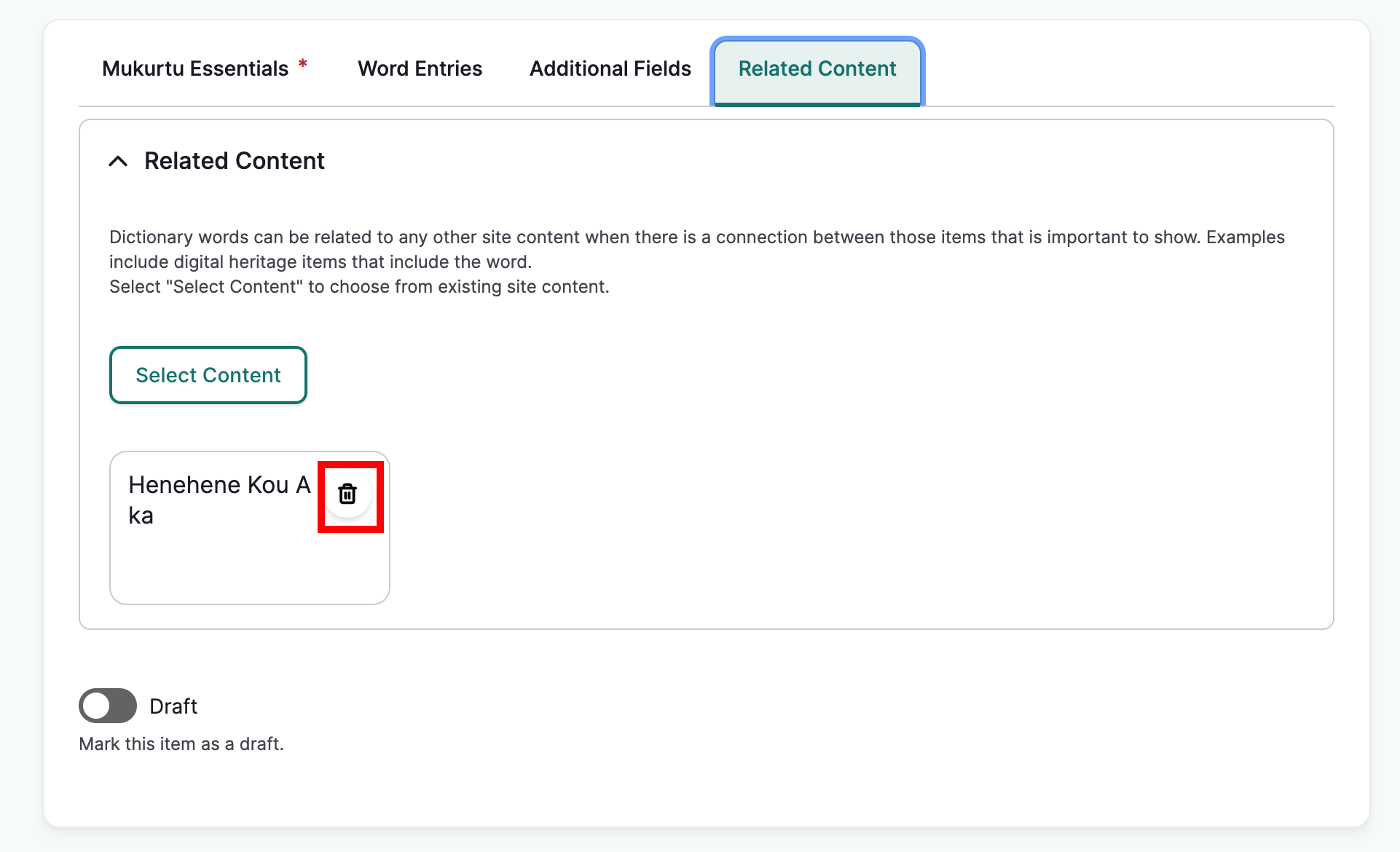
The item will appear under Related Content. To remove content, select the trashcan icon in the top right corner of the item.
Save
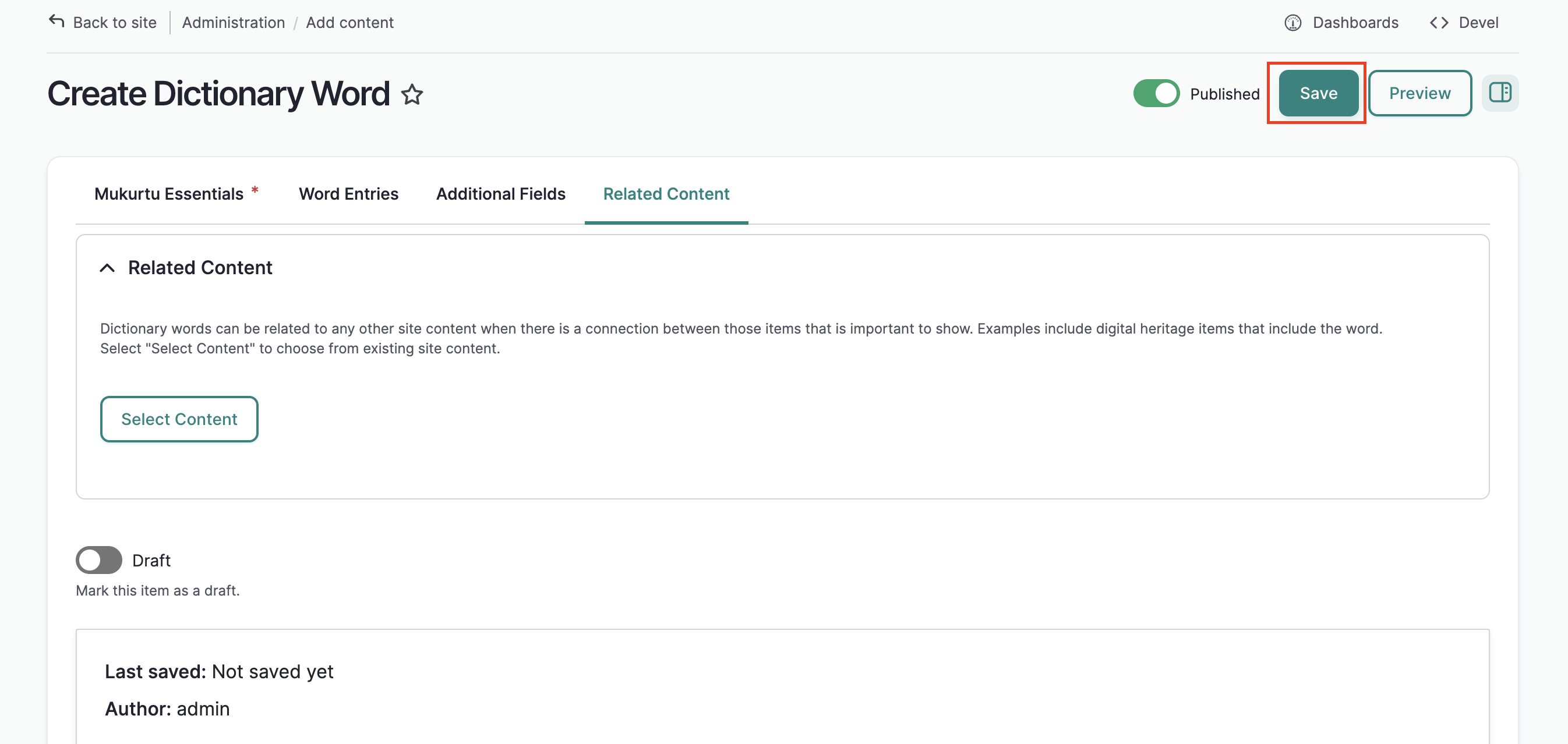
When you are finished filling out all relevant metadata fields, select "Save" which is sticky at the top right corner of the page.
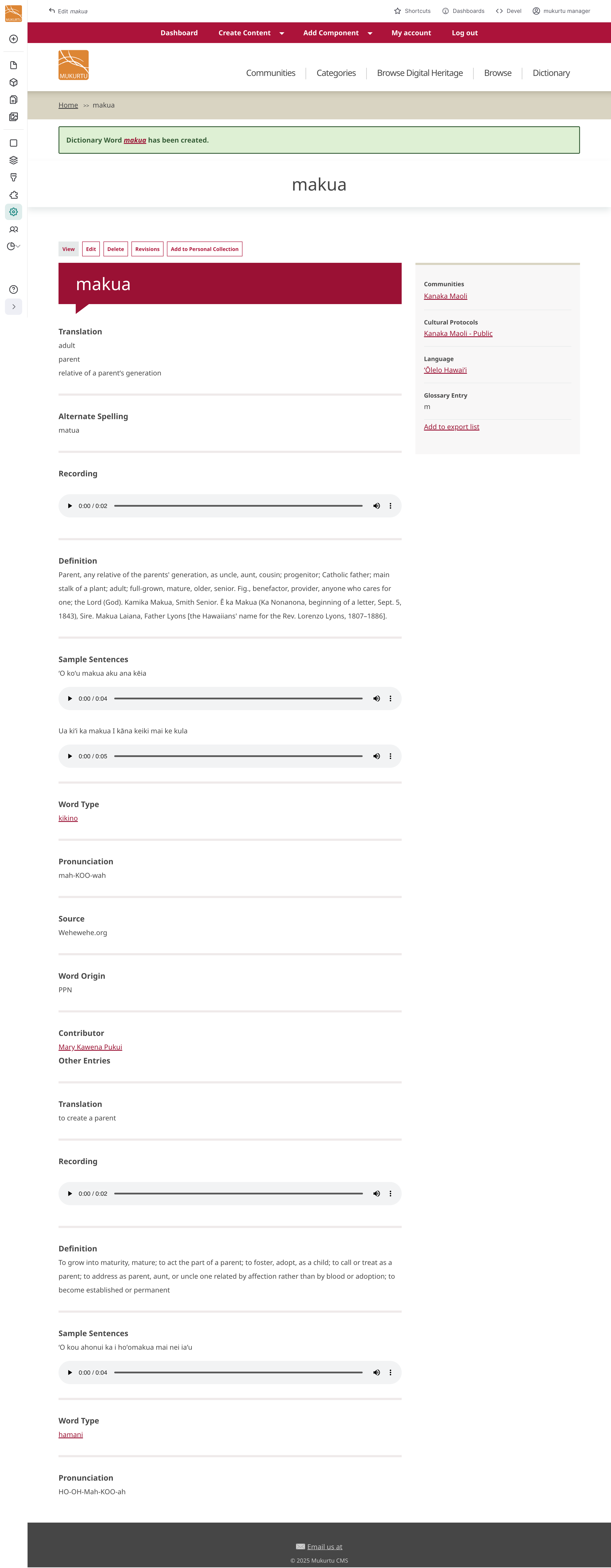
The term will display along with a success message.