Enable Multilingual Module
User role
Mukurtu manager
The Mukurtu Multilingual module enables the required Drupal multilingual modules (Configuration Translation /admin/config/regional/config-translation, Interface Translation /admin/config/regional/translate, and Content Translation/admin/config/regional/content-language), and configures recommended default settings for most multilingual work. If necessary, these settings can be modified after enabling the Mukurtu Multilingual module. Follow the instructions below to configure your site to display your site's elements and content in multiple languages.
Enable module
-
From the administrative menu, select Extend or navigate to
/admin/modules.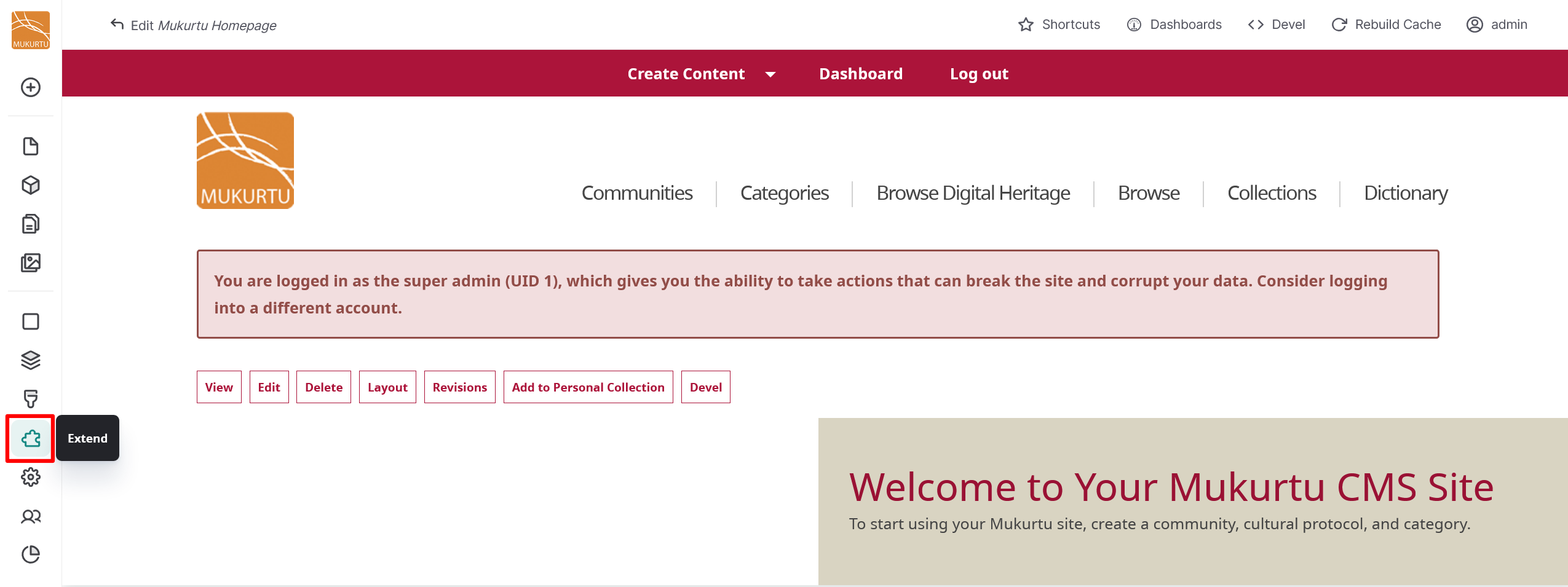
-
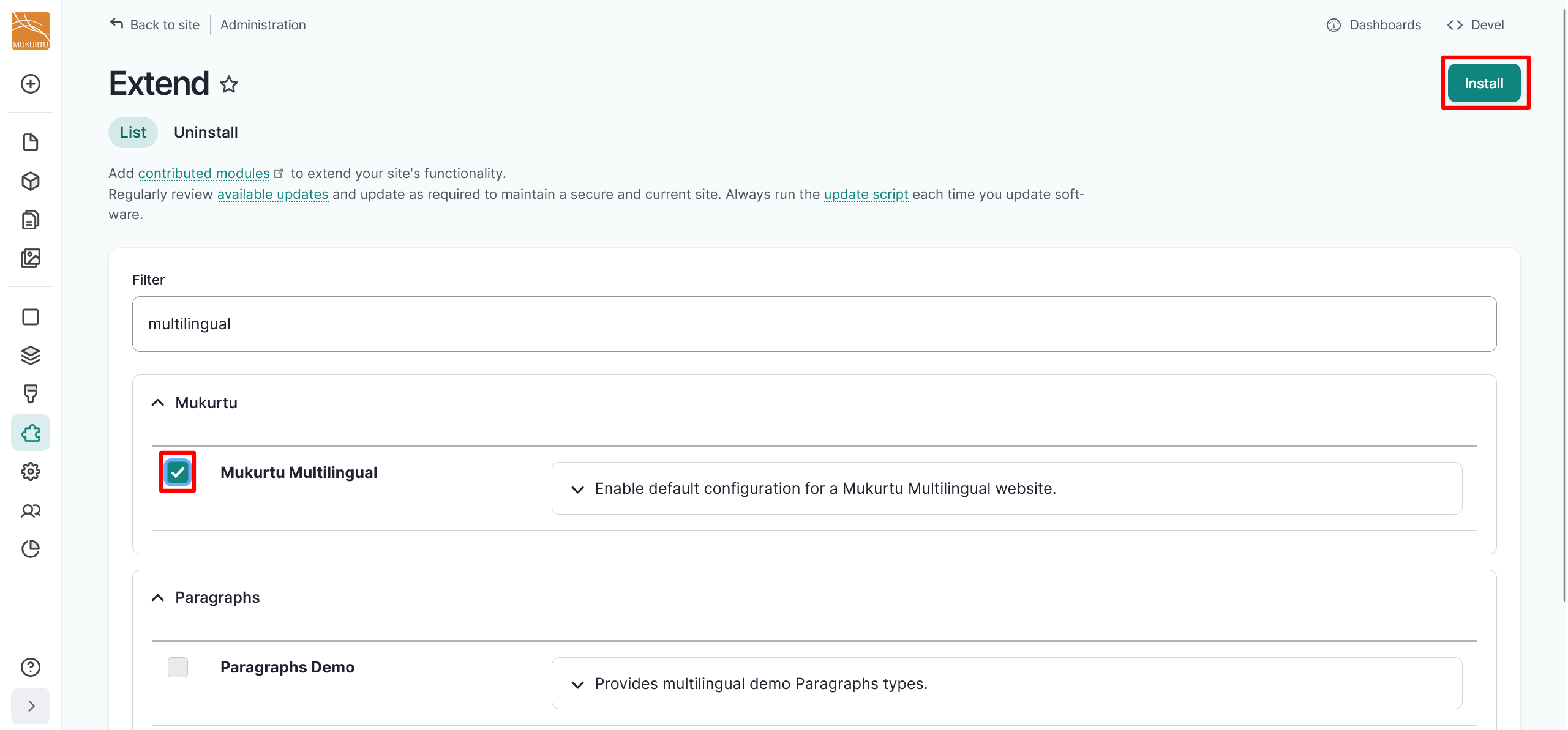
Use the Filter field to search for "multilingual".
-
Select Mukurtu Multilingual, then select "Install". This installs and configures the Mukurtu Multilingual, Configuration Translation, Interface Translation, and Content Translation modules.
-
You will receive a message asking you to confirm that you want to install all of the associated modules. Select "Continue".

-
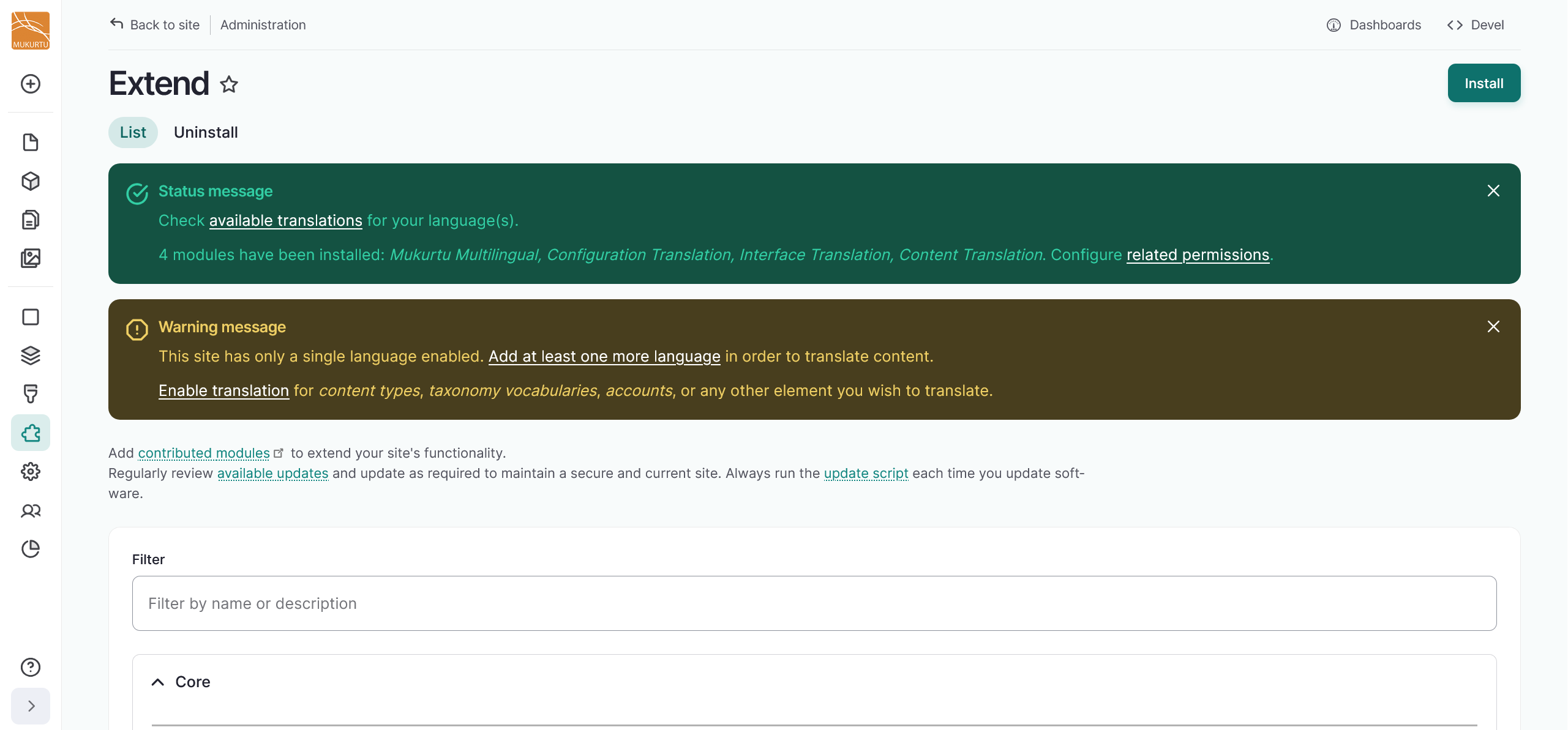
You will receive a status message confirming whether your modules have been installed. The warning message includes a link to add languages to your Mukurtu site. Continue to the next section for instructions on adding a language to your site.
Add Languages
To add a language for translation, follow the link in the warning message you got when you configured your site languages or use the administrative menu to navigate to Configuration > Region and Languages > Language. You can also access this setting directly by going to /admin/config/regional/language.
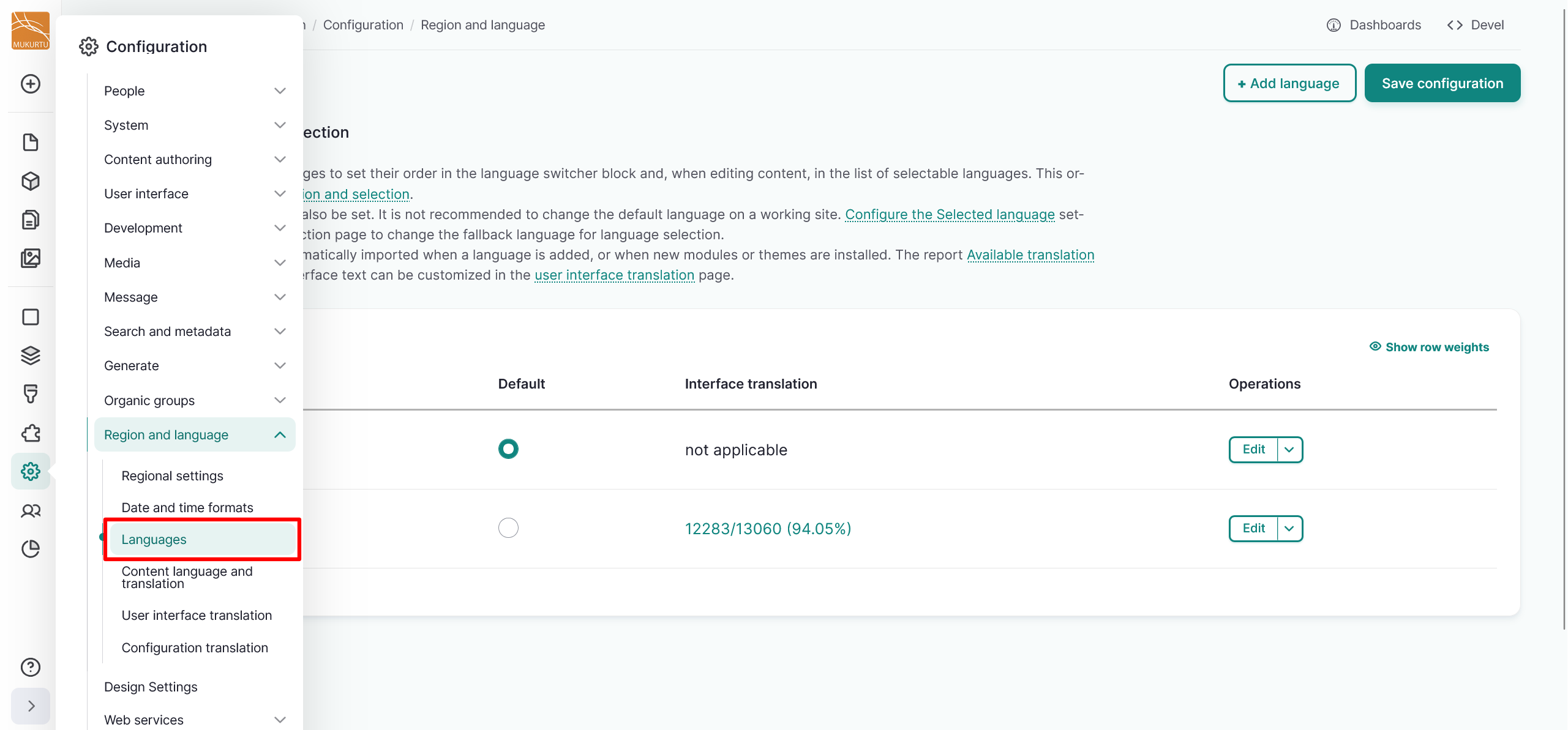
Add a language
-
Select the "Add Language" button in the top right-hand corner of the Languages configuration page.
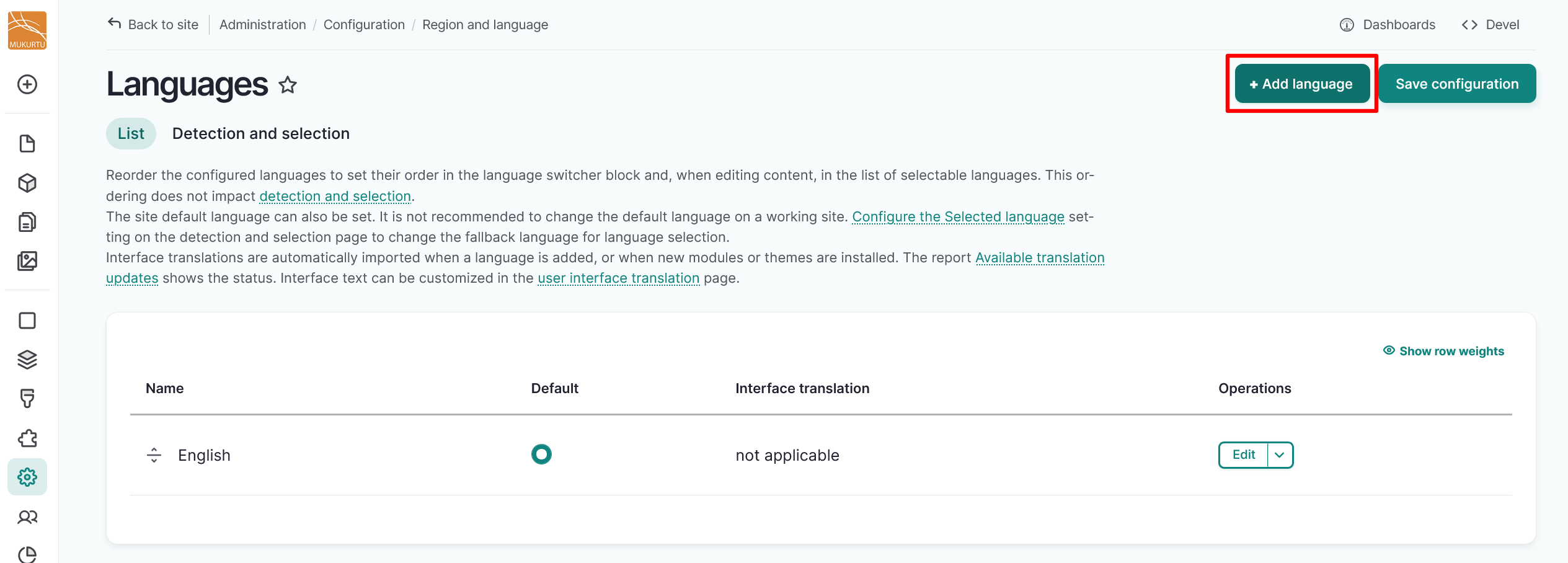
-
Select a language from the dropdown menu. If your language is not listed in the dropdown menu, refer to the Add a custom language code section of this article for instructions on how to add your language.
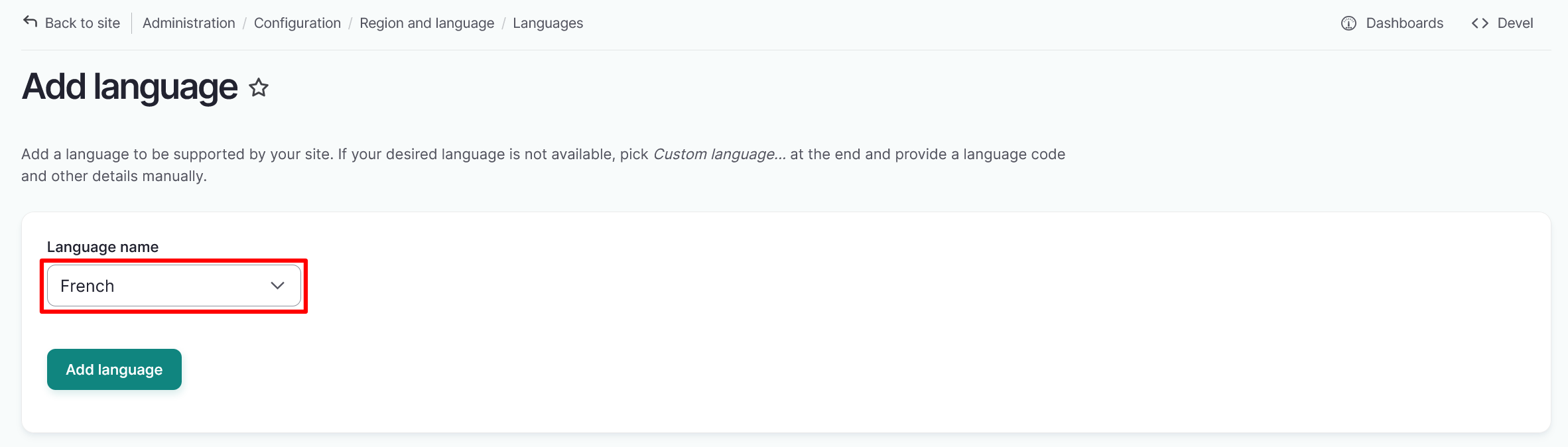
-
Select the "Add language" button to add the selected language to your site.
-
You will receive a confirmation message that your language has been added successfully.
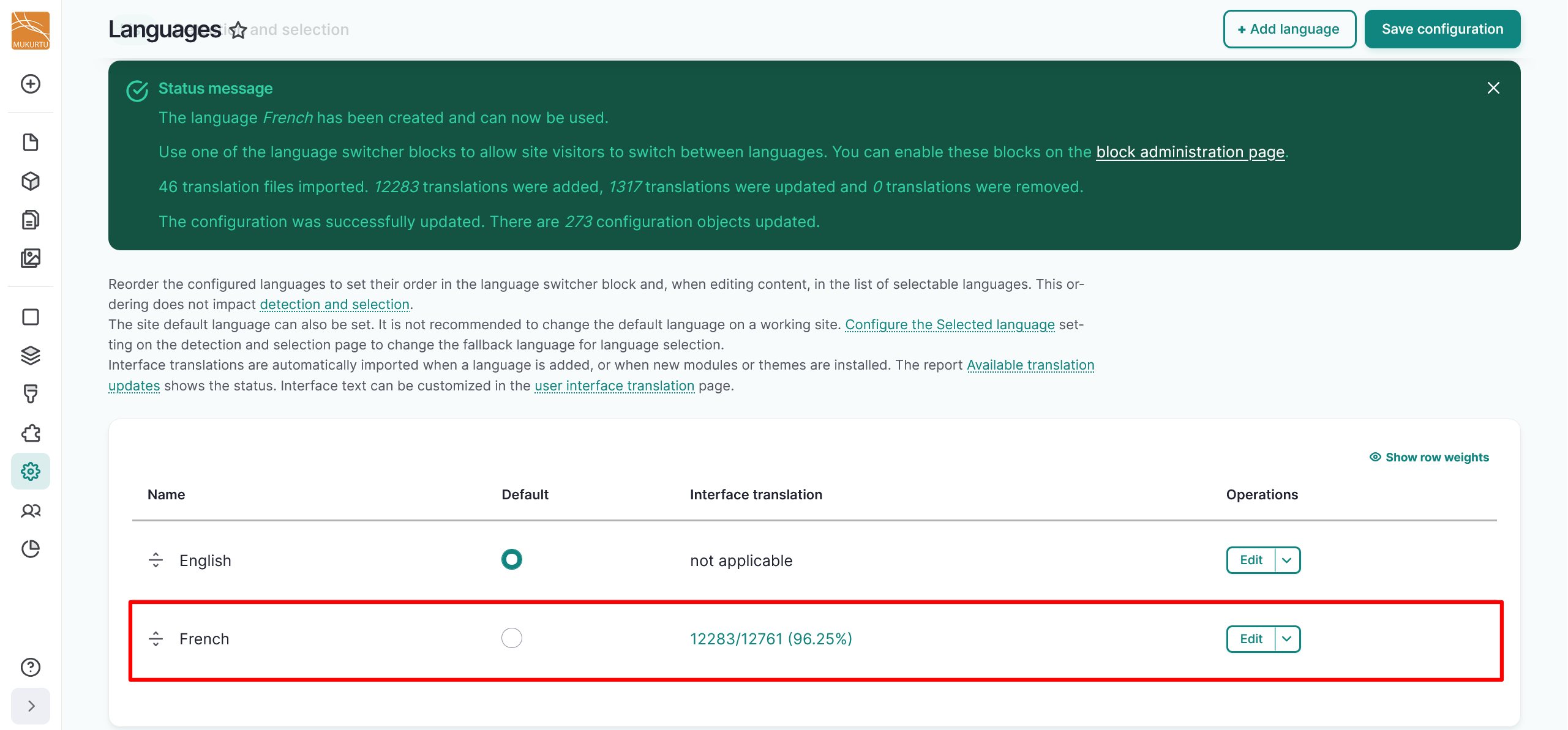
Add a custom language
-
If your language is not available, select the "Custom language" option to provide a language code and other details manually. For more information on translating site elements, refer to the Configuration Translation and User Interface Translation articles.
- A listing of IANA language tags can be found at the IANA Language Tags Registry site.
- If your language is not listed, you can construct a custom language tag. For more information on constructing custom language tags, visit the IANA Language Tags Registry.
-
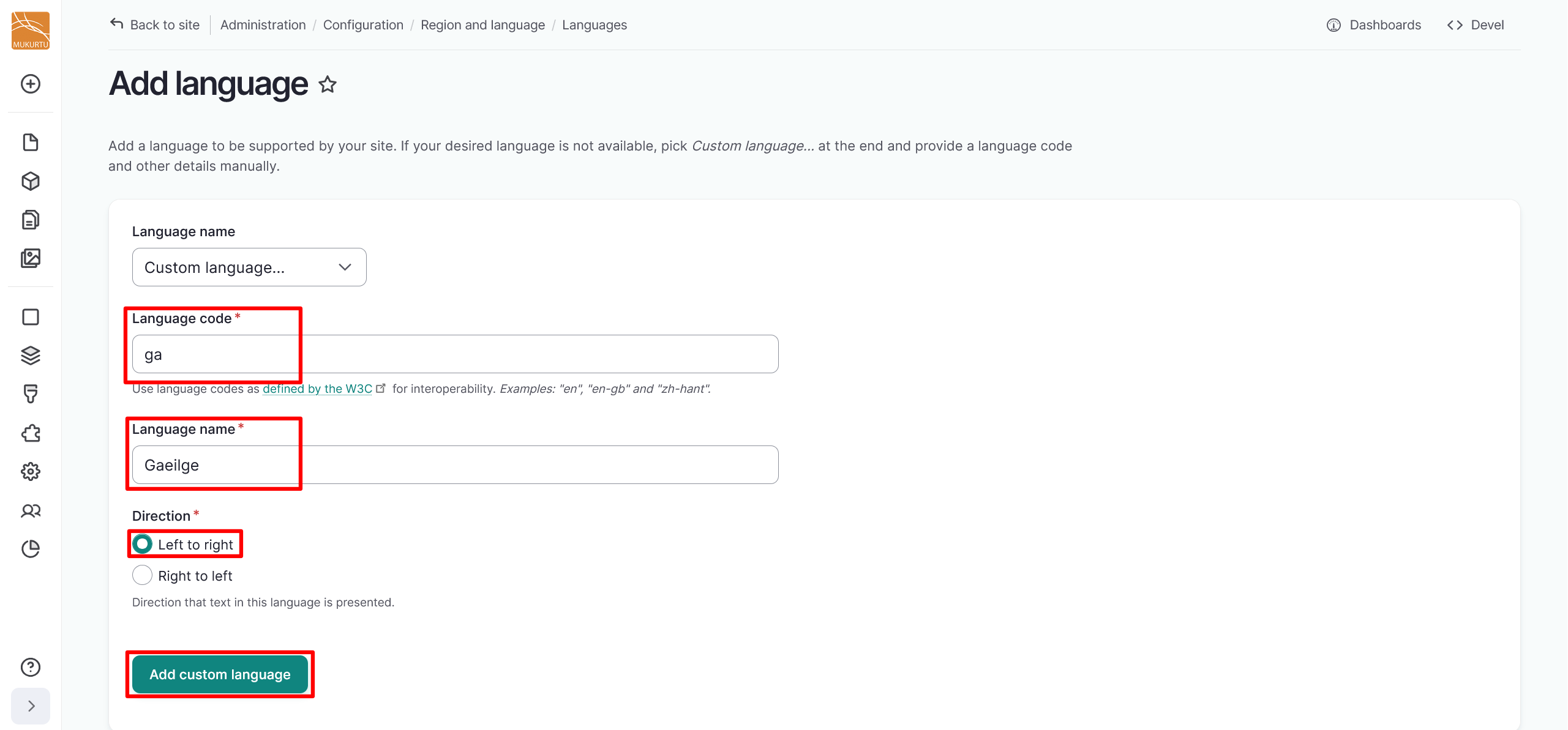
Add your language code in the Language code field.
- Add the name of your language in the Language name field.
- Select a text direction for your language.
- Select the "Add custom language" button to import your language.
For more information on language tags and subtags, visit the IANA Language Tags Registry Primary Language Subtag article. For help configuring a custom language tag, please contact Mukurtu Support at support@mukurtu.org.