SoundCloud Assets
User roles
Protocol steward, contributor, community record steward, curator, language steward, language contributor
- Navigate to your dashboard. Select Add Media.
- Select the SoundCloud link.
-
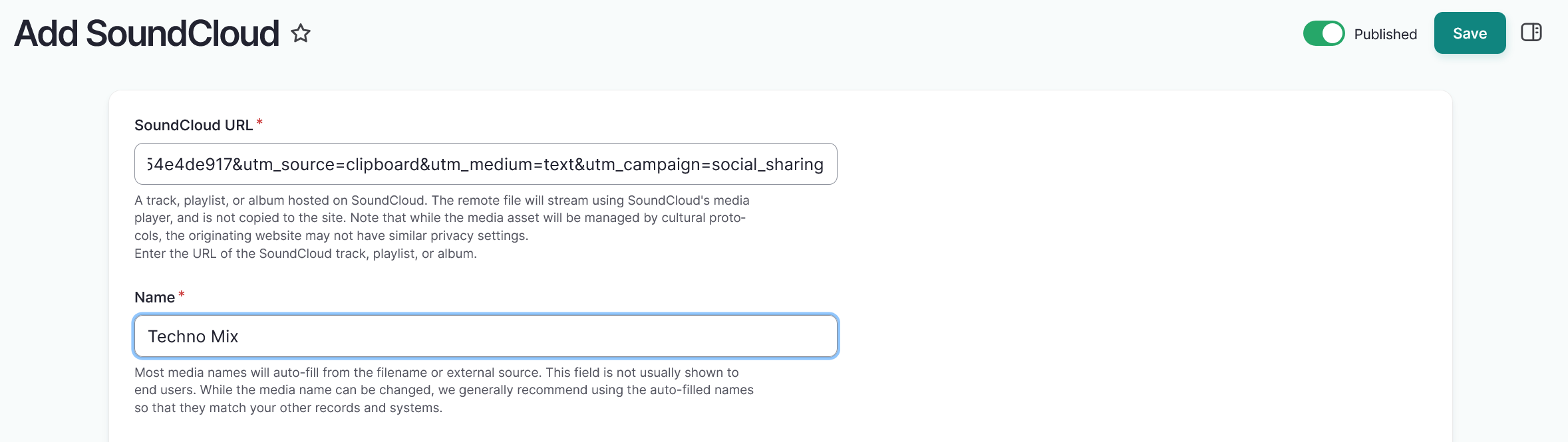
In the SoundCloud URL field, insert the full URL for a SoundCloud asset. This should be formatted as
https://www.full.asset.link.- This is a required field.
Tip
SoundCloud assets can be tracks, playlists, or albums.
-
Enter the name of your SoundCloud asset is automatically generated. If necessary, you can edit the name of your SoundCloud asset by editing the text in the Name field.
- This is a required field.
-
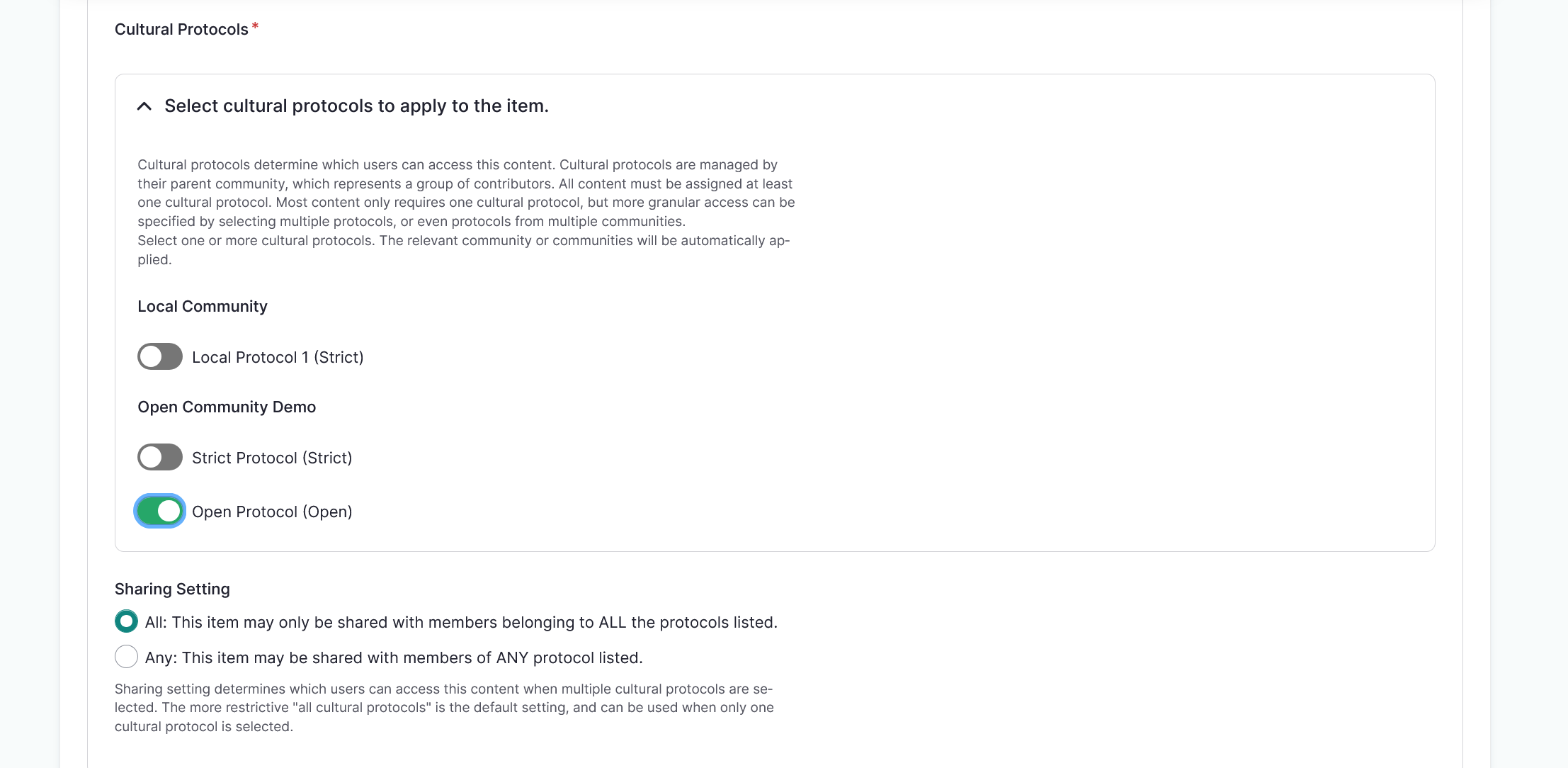
Use the toggle(s) to apply cultural protocols to the media asset.
- This is a required field.
-
Navigate to the Sharing Setting field to apply a sharing setting. Select All or Any.
- All means that the media asset may only be shared with members belonging to ALL the protocols listed. This is the more restrictive setting.
- Any means the asset may be shared with members of ANY of the protocols listed. This is less restrictive.
- This is a required field.
Tip
All is the default setting.
-
SoundCloud assets are represented by an interactive media player instead of a thumbnail image by default. You may choose to add a thumbnail to your SoundCloud asset.
- Select "Choose file" to upload an image.
- Provide alternative text for your thumbnail. This is required for all thumbnail images.
-
In the Identifier field, provide a unique identifier for the SoundCloud asset. This identifier is usually an accession number, catalogue number, or other unique identifier.
-
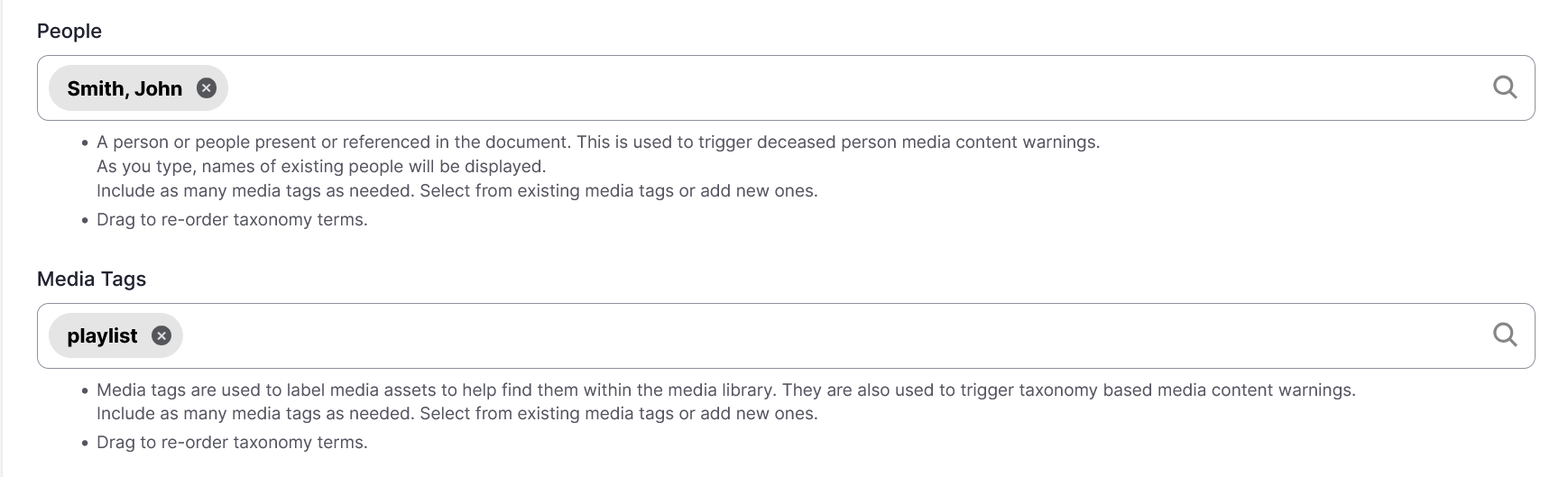
Use the People field to enter the name of anyone present, named, or referenced in the media asset.
Tip
This field feeds into the "deceased person" media content warnings.
- If more than one individual should be listed, use the text box to select existing people terms or add new ones.
- Select and drag to reorder if necessary.
- To remove a person, select the "X".
-
Select a Media tag by entering text in the text box and selecting from the provided options. Include as many media tags as needed. Select from existing media tags or add new ones.
Tip
Media tags can be used to tag and locate assets within the media library (for example,
oral historyornewspaper). They can also be used to trigger media content warnings when that tool is enabled.- Select and drag to reorder if necessary.
- To remove a media tag, select the "X".
-
Use the Contributor field to enter the name of the speaker or singer of the recording.
- If more than one person should be listed as a contributor, use the text box to select existing contributor terms or add new ones.
- Select and drag to reorder your contributors if necessary.
- To remove a contributor, select the "X".

-
Select the "Save" button to save your media asset.