Manage Categories
User role
Mukurtu manager
Over time categories may need to be revised, combined, or generally cleaned up. You can edit a single category, or merge multiple categories into one.
Tip
For more information on adding new categories, visit Create Categories.
Edit a category
- From your dashboard, select Manage Categories.
-
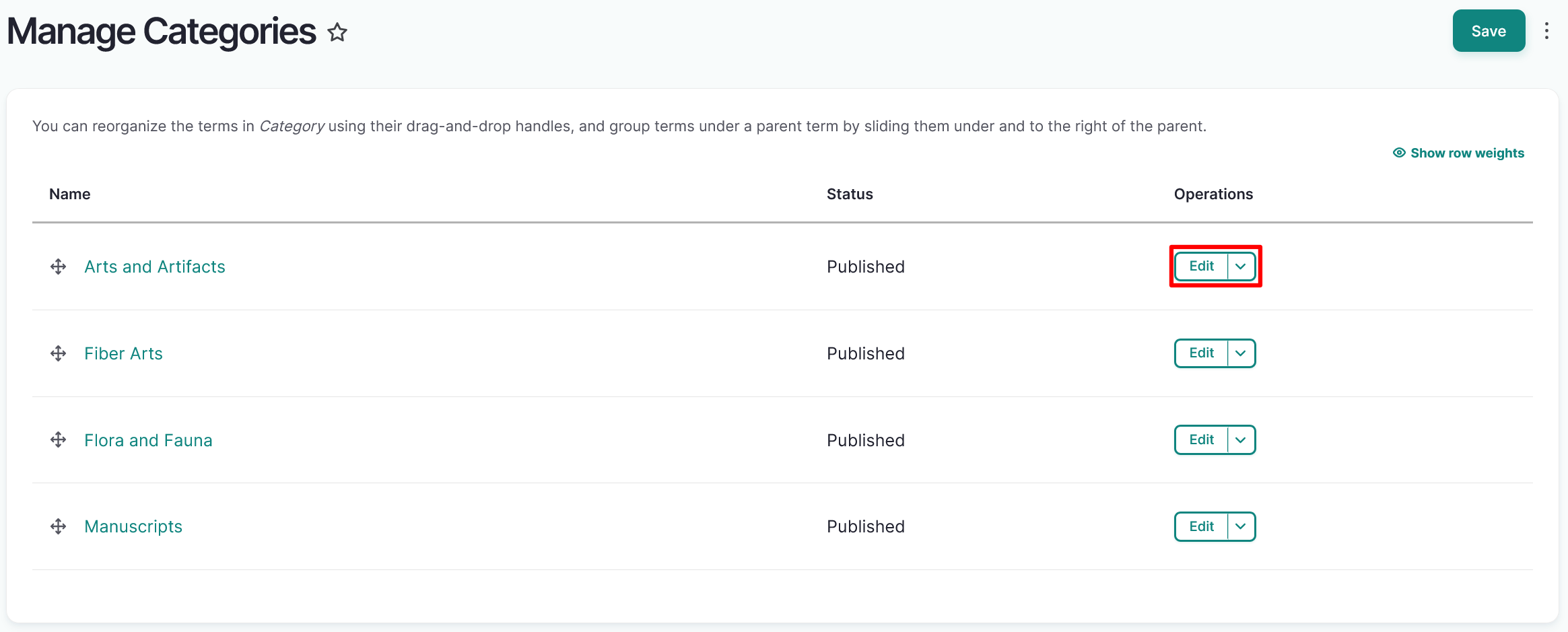
Select the Edit link for the category you want to make changes to.
-
Edit your Category Name, Description, or Thumbnail Image, then select "Save".
Tip
Cultural protocols are required for category thumbnails. For more information on getting started with cultural protocols, refer to Create a Community and Initial Cultural Protocol.
Merge categories
Unnecessary or unwanted categories can be merged into other categories, so that digital heritage items are reassigned from one category to the new category. Reasons to merge categories may include:
- Categories that were mistakenly added through duplicate or near-duplicate terms can be merged into the correct category.
- Categories that were useful may need to be removed due to site restructing or digital heritage item review.
Follow the instructions to merge your categories.
Tip
For more information on taxonomies in Mukurtu, visit Understanding Taxonomies. For instructions on how to manage taxonomies, visit Managing Taxonomies.
- To manage the category taxonomy, navigate to your Dashboard.
-
Under the Taxonomies heading select the Manage taxonomies link, then select the "List terms button to the right of the Category option. You can also navigate directly to
/admin/structure/taxonomy/manage/category/overview.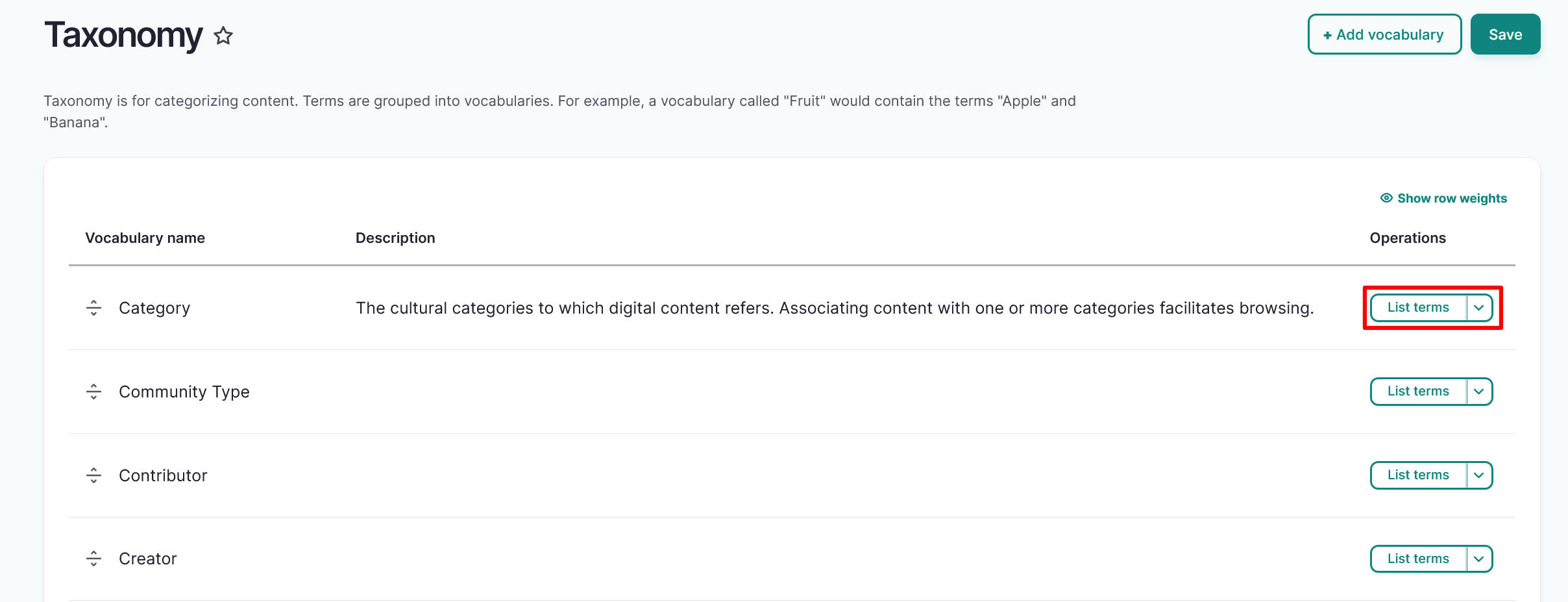
-
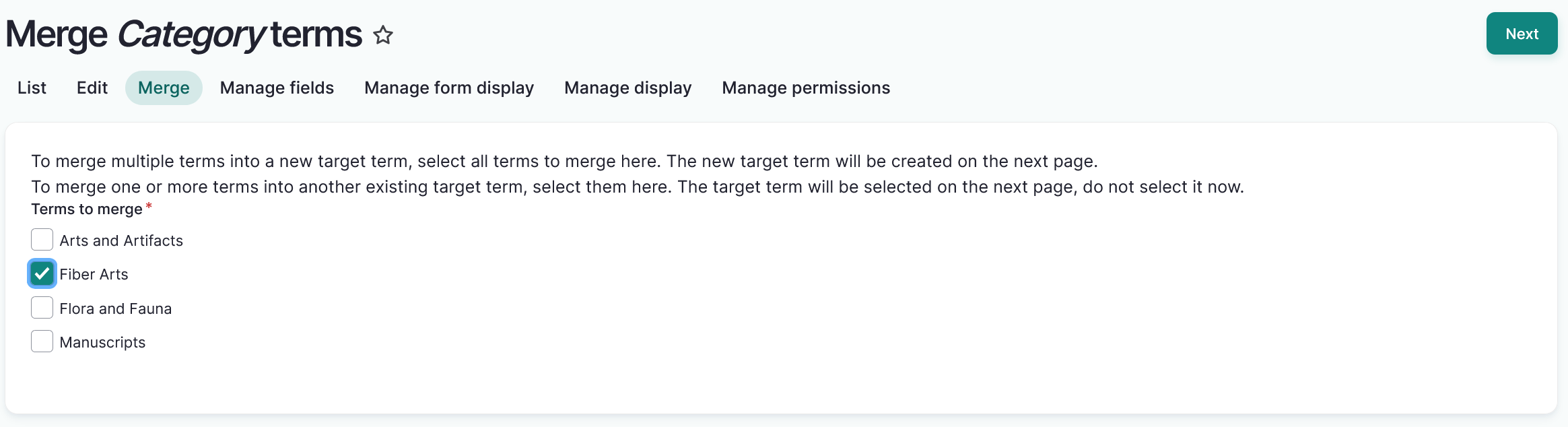
Navigate to the Merge tab.
-
Select the checkbox by the terms you want to merge into a new or existing term.
Tip
To merge multiple terms into a new target term, select all terms to merge here. The new target term will be created on the next page. To merge one or more terms into another existing target term, select them here. The target term will be selected on the next page, do not select it now.
-
Select "Next".
-
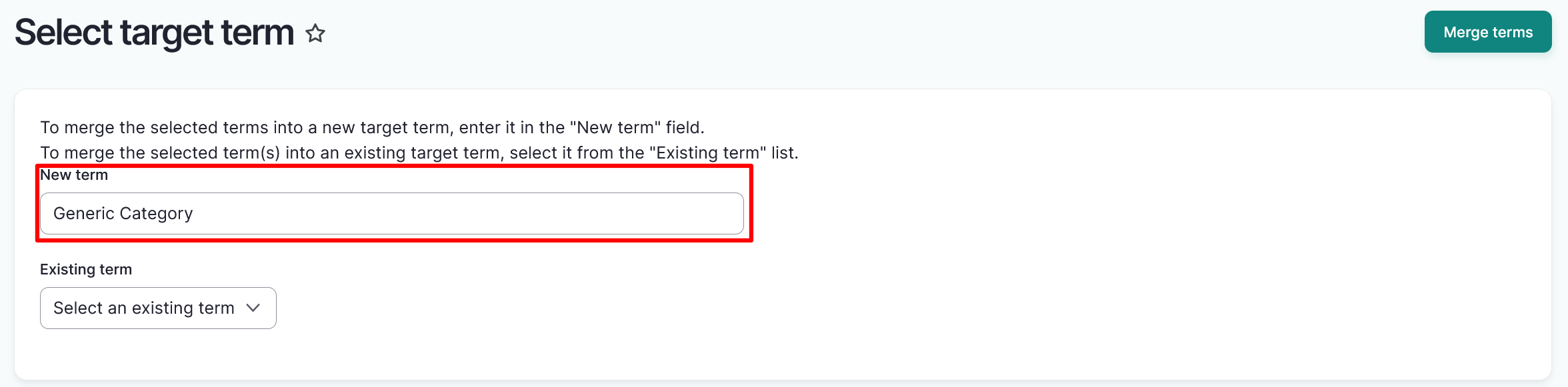
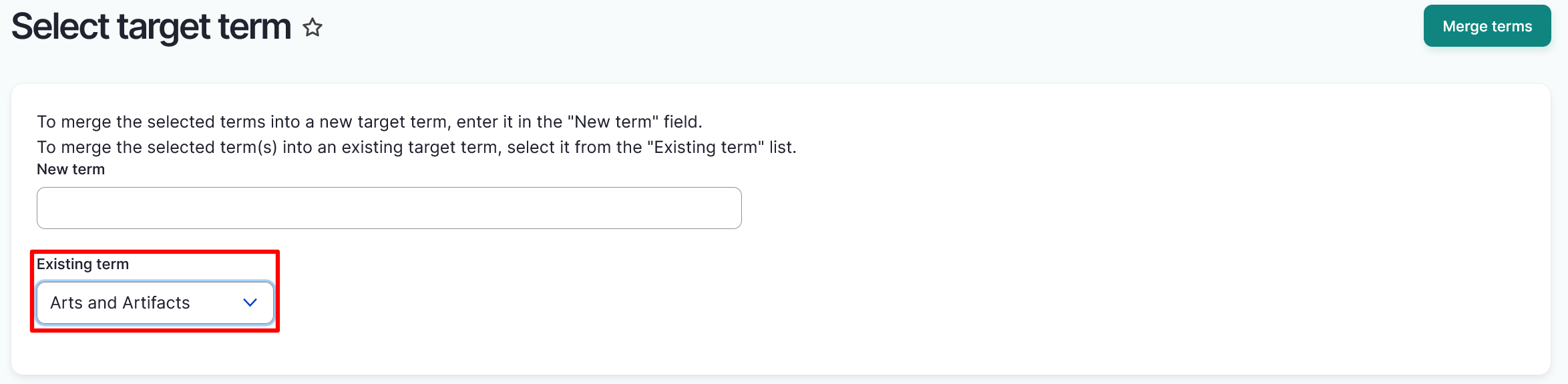
Determine whether to merge the selected terms into a new target term or into an existing term.
- To merge the selected terms into a new target term, enter it in the "New term" field.
- To merge the selected term(s) into an existing target term, select it from the "Existing term" list.
-
Select the "Merge terms" button. This will take you to a confirmation page.
-
Review the terms to be merged and the target term on the confirmation page. If all the information is correct, select the "Confirm merge" button.
Warning
This action cannot be undone.

-
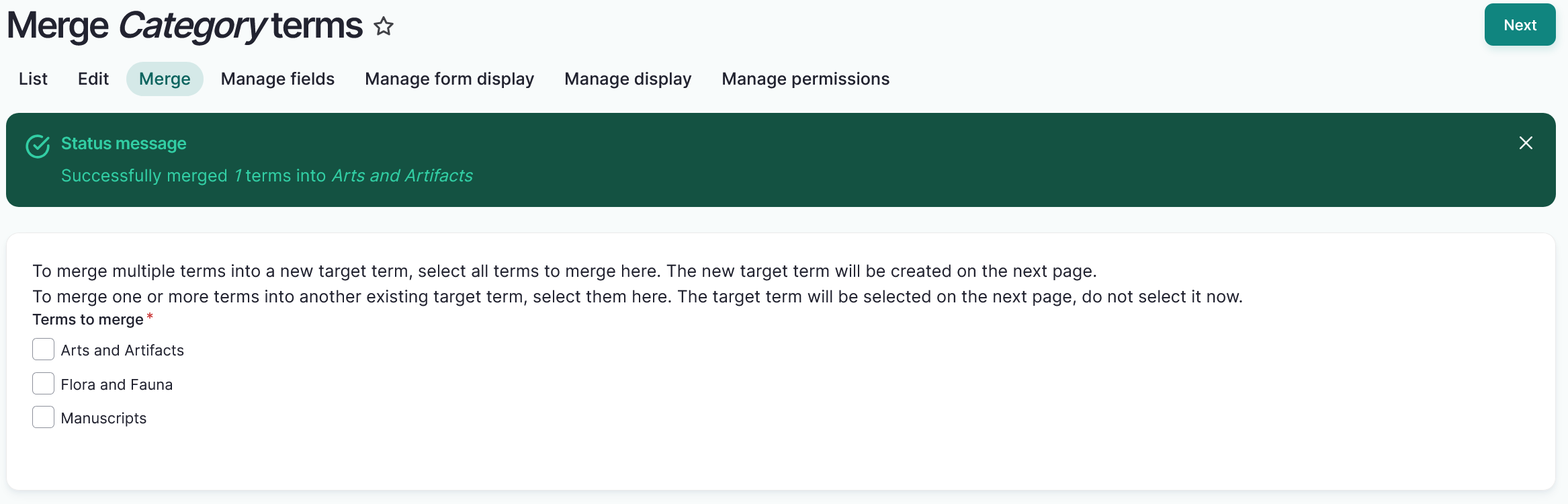
After you confirm your merge, you will see a status message that you have successfully merge your terms into your target category.