Configure Subtheme
User role
Drupal administrator
The most effective way to customize the look and feel of your site without having to reimplement changes is to install a subtheme. Subthemes are built off the main Mukurtu_v4 theme, and inherit the parent theme's resources while functioning like any other theme.
Warning
The instructions in this article require a degree of familiarity working with command line tools and editing code, which is not without risk. Changing your code may break your site and corrupt your data. Before following these instructions, make sure to back up your site, and confirm that you can restore from a backup.
- In your site's file structure, navigate to the Mukurtu_v4 themes folder by going to
\web\profiles\mukurtu\themes\mukurtu_v4. - Create a
Themesfolder. -
Create a subfolder with the name of your subtheme. For this example, we will use
subthemeas the name of our subtheme.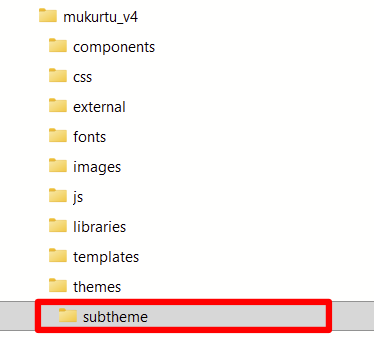
-
Copy the
mukurtu_v4.infoandmukurtu_v4.librariesYAML source files from the parent theme to your subtheme folder.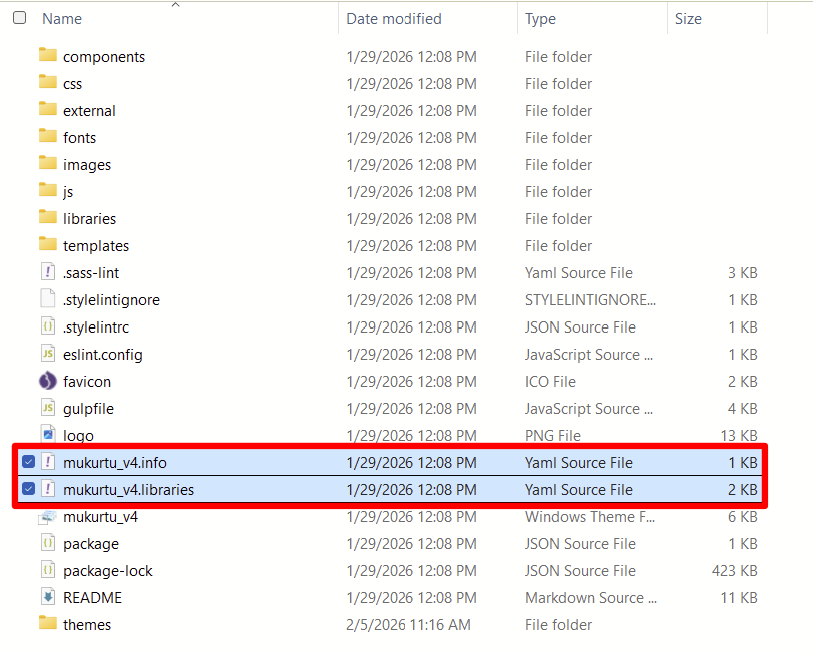
-
Rename the
mukurtu_v4.infoandmukurtu_v4.librariesYAML source files tosubtheme.infoandsubtheme.libraries.
-
Open the
.infofile in your preferred text editor. - Rename the name field to reflect the name you want to give your subtheme.
- Use the description field to describe your subtheme. It can be helpful to annotate which parent theme your subtheme is a child of.
- In the base theme field, input
mukurtu_v4as your base theme. -
Use the libraries field to annotate your subtheme. This should read
subtheme1/global-styling.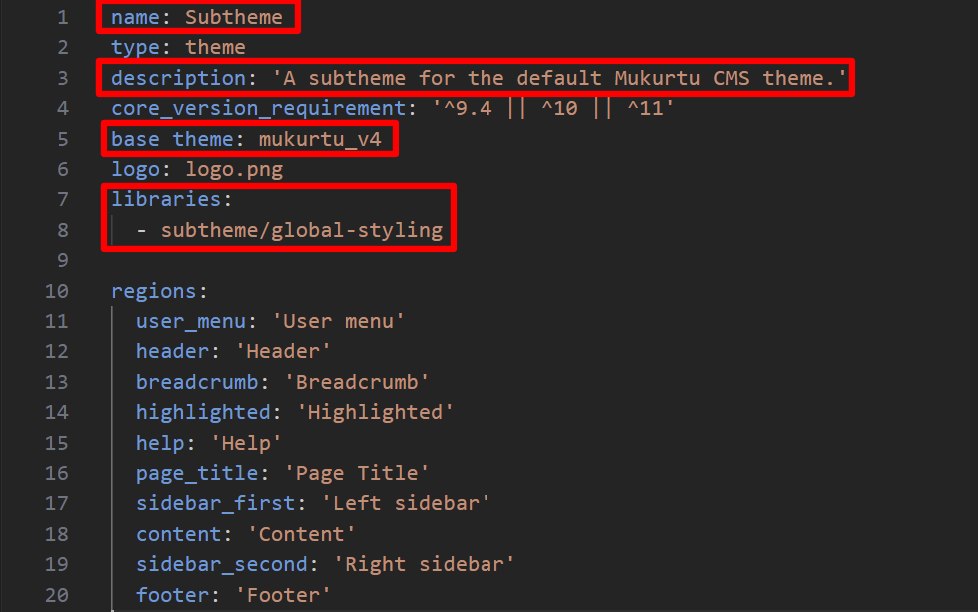
-
Select "Save" to save your subtheme.
-
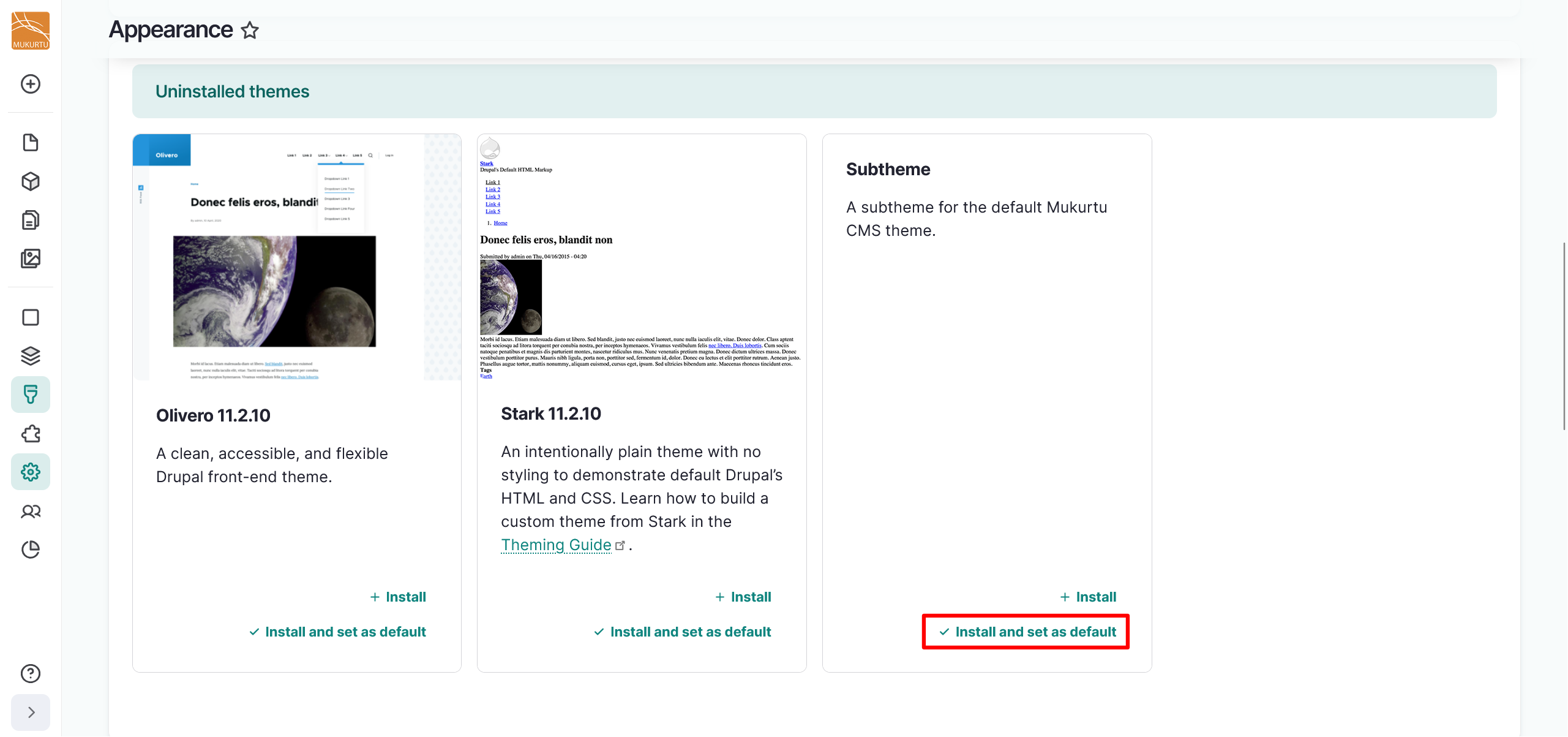
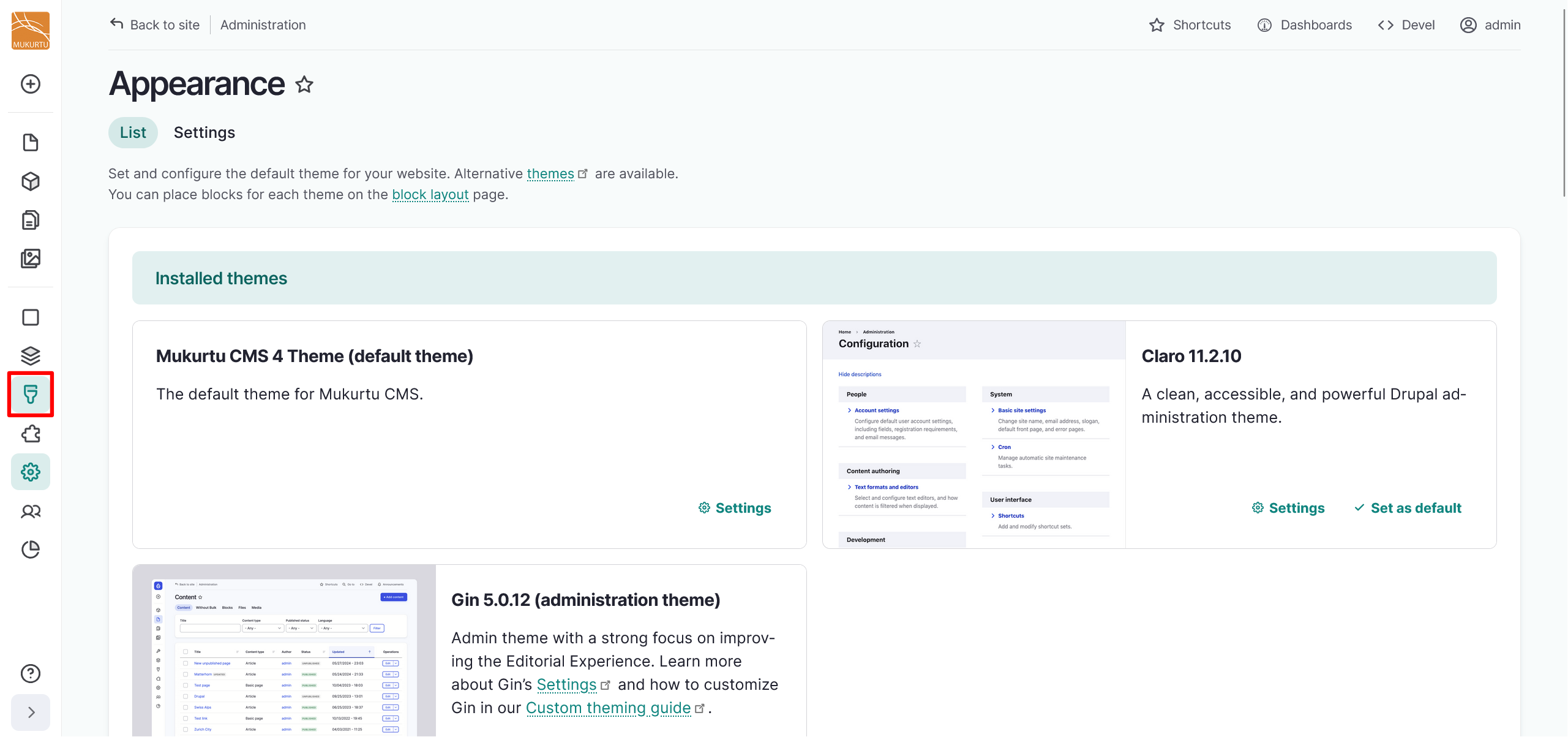
On your Mukurtu site, use the Appearance icon to navigate to the Appearance admin page.
-
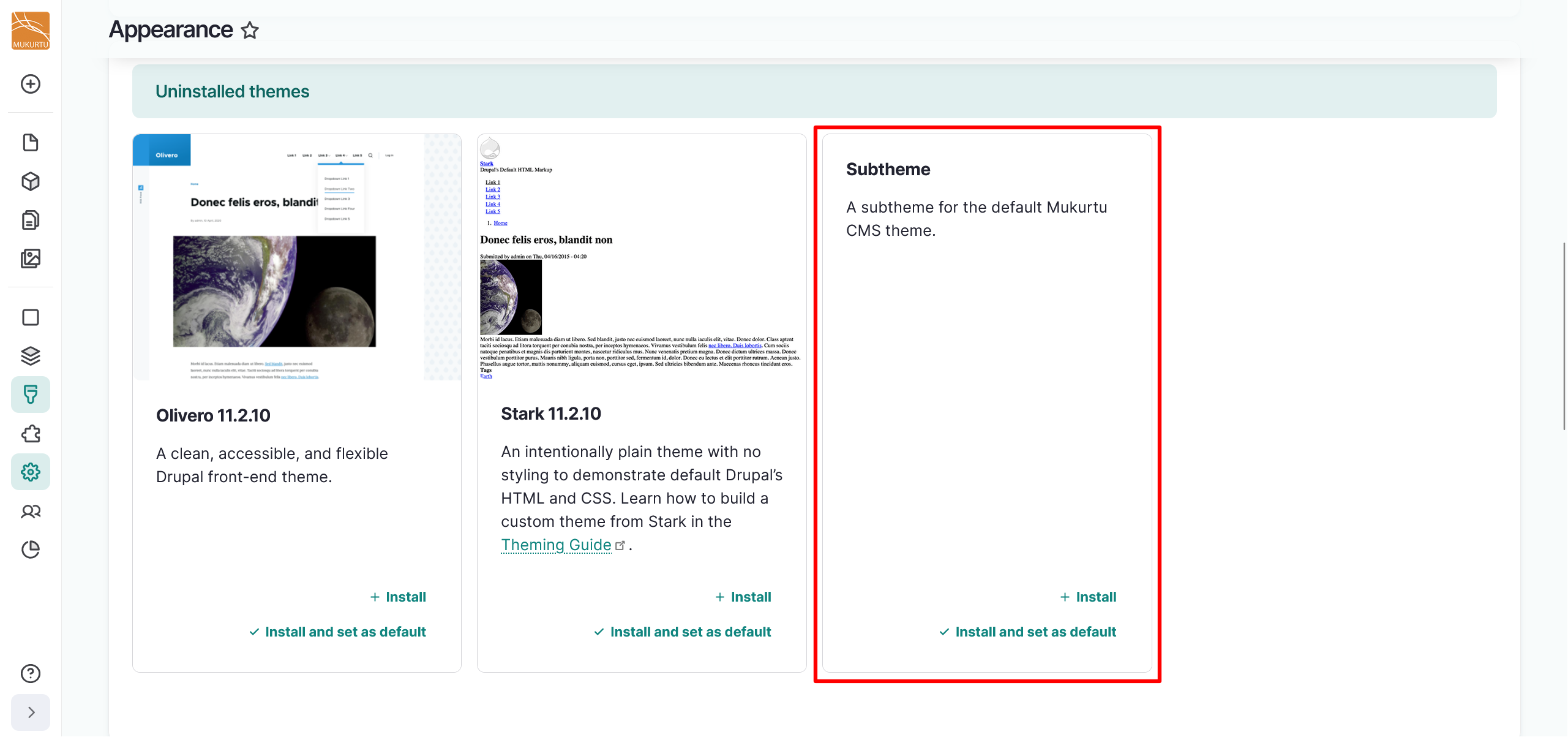
Navigate to the Uninstalled themes section of the page. Your subtheme should be listed.
-
Select Install and set as default to install your subtheme and make it the default theme for your site.